
How to Install Stremio on Firestick and ONN TV, Plus the Best Add-ons for Free Movies and TV
Stremio is a clean, free way to watch movies and TV on a Fire Stick or ONN box, once you add the right add-ons. Here is how to install Stremio and the best add-ons to turn it into a streaming machine.
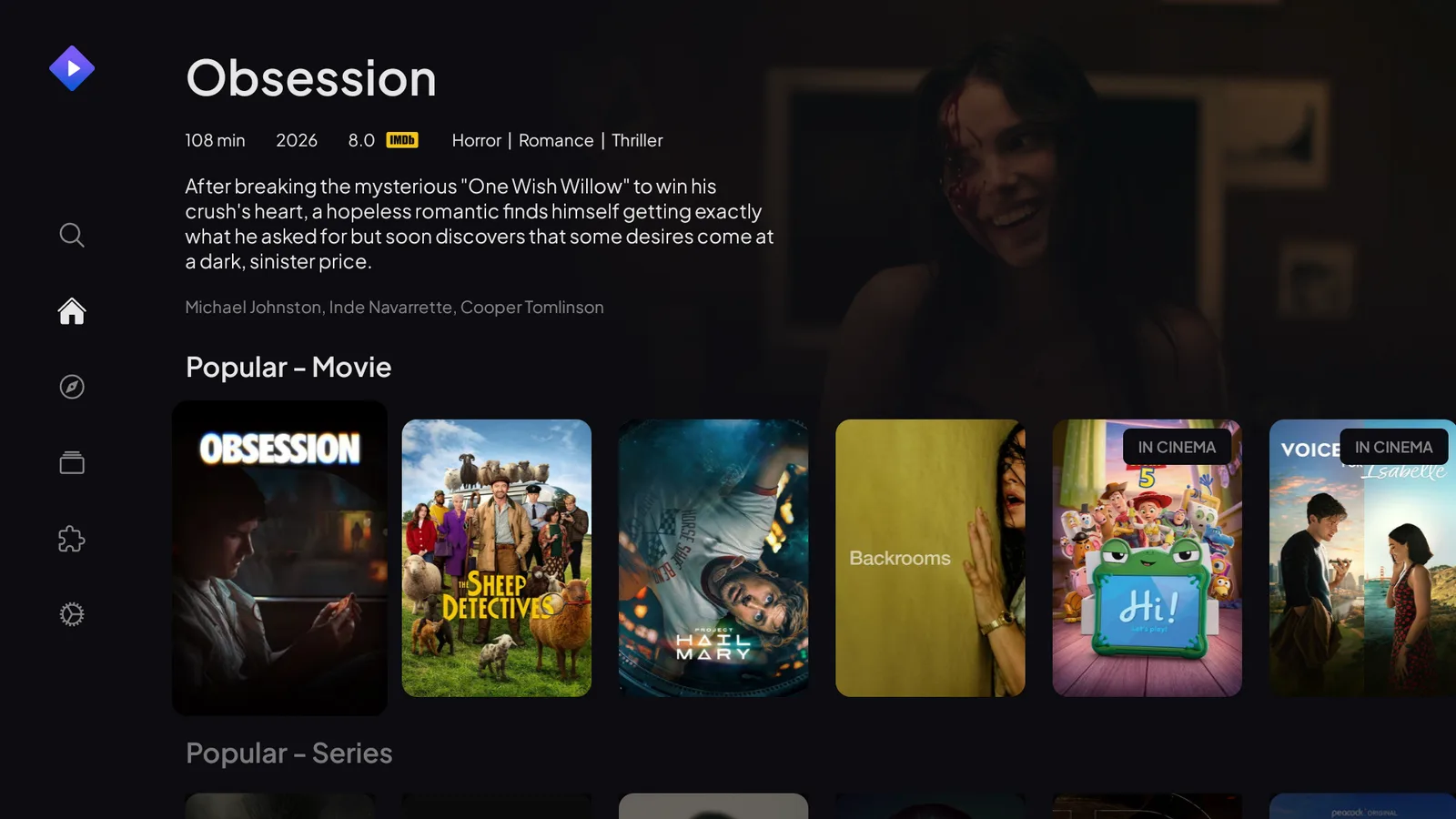
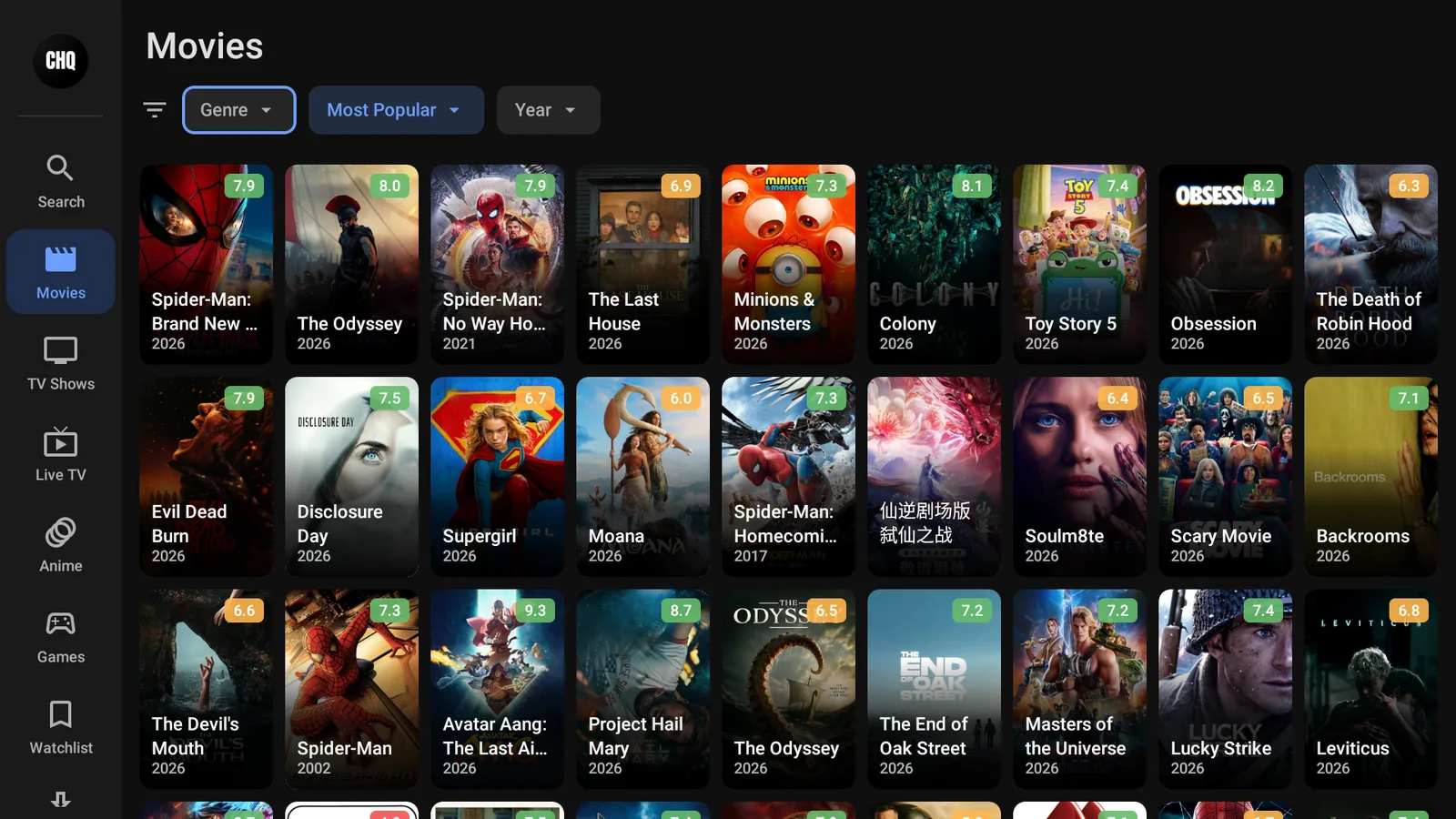
Stremio is one of the smartest ways to watch free movies and TV on a Fire Stick or ONN box, once you understand the one thing that makes it tick. Stremio on its own is just a clean, organized library. The actual streams come from add-ons. Install Stremio, add a couple of add-ons, and you have a tidy, Netflix-style app pulling in movies, shows, and live TV for free.
Here is how to get Stremio onto your device, and the add-ons that turn it into a proper streaming machine.
What Stremio is, and why add-ons matter
Think of Stremio as the shelf and the add-ons as what fills it. On its own it shows you posters, categories, and a search bar, but it will not play anything until you add a source. Add-ons are those sources. One pulls in movie and TV streams, another handles subtitles, another might do live TV. Add them once and Stremio ties it all together into a single app.
That design is exactly why the two-minute setup is worth it.
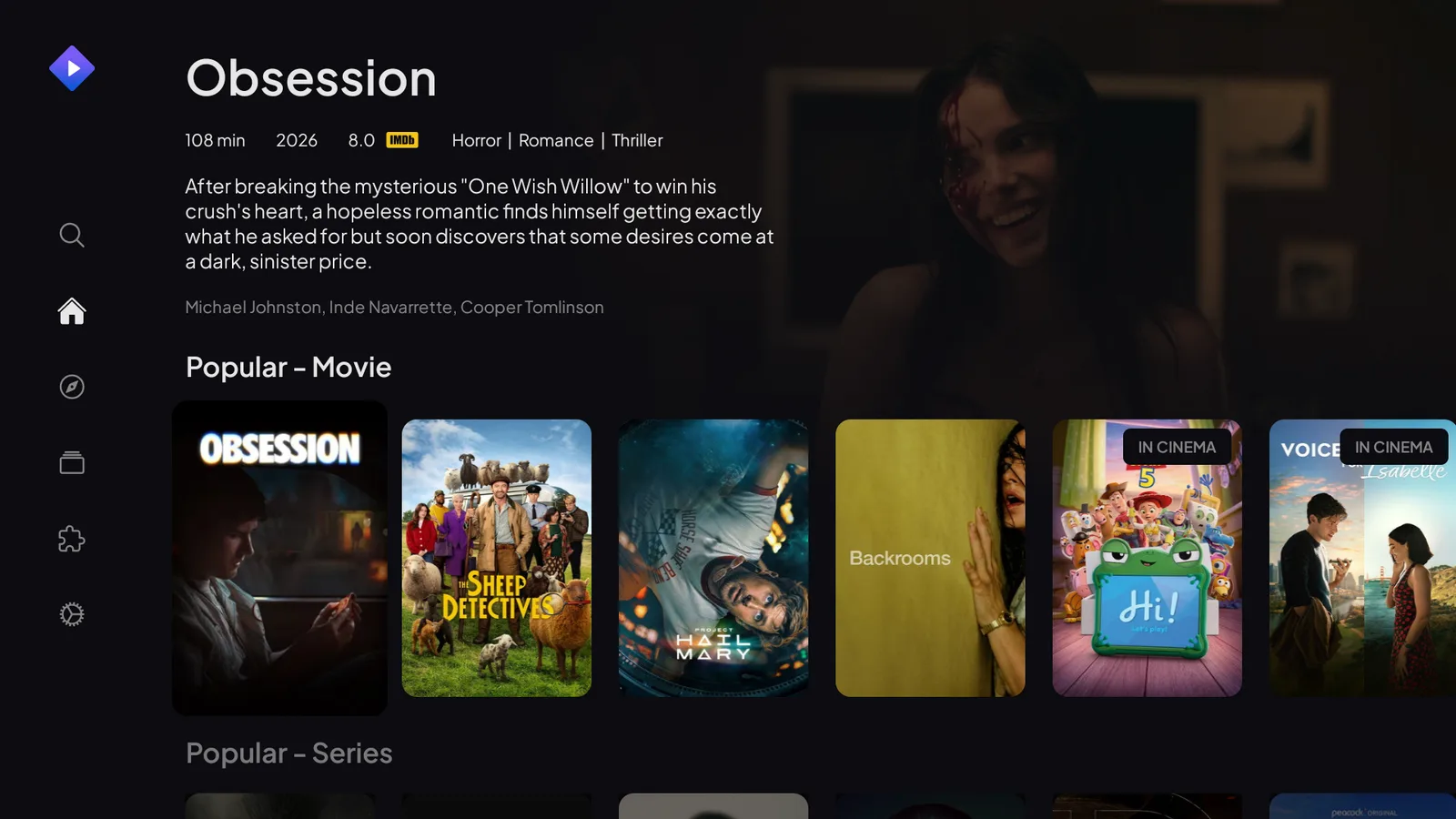
Install Stremio on a Fire Stick
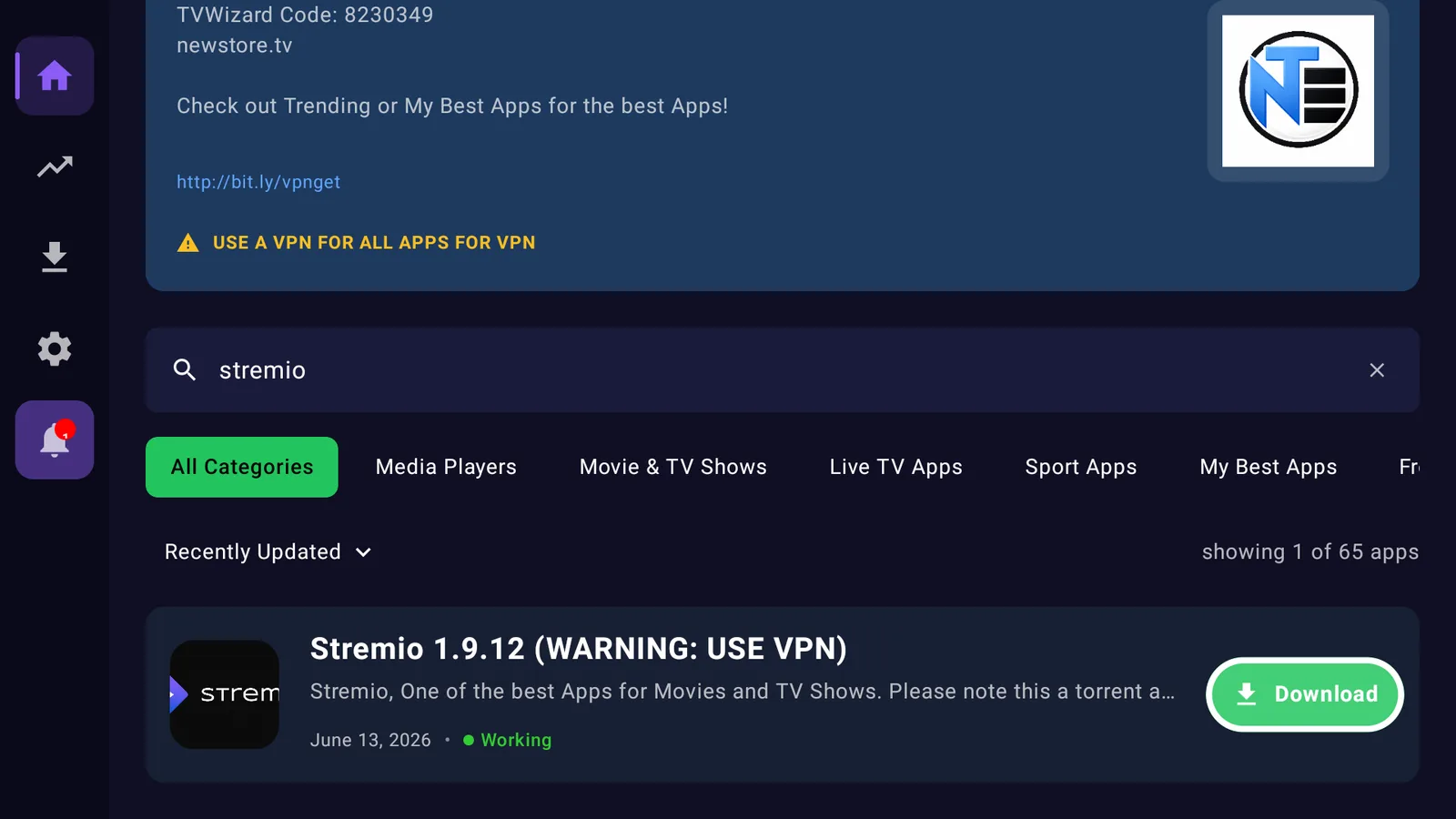
Fire Sticks do not carry Stremio in the Amazon store, so you install it the easy way, through our free tools.
- Open Downloader and type newstore.tv to install TV Wizard, our setup app. It puts the app stores in place for you.
- Or open LinkDrop at linkdrop.store, click Explore the collection, and find Stremio.
- Select Install, let it finish, and open it.
New to this? Our step-by-step guide walks through it once: how to sideload apps.
Install Stremio on an ONN 4K or Android TV box
ONN boxes run Google TV, which makes this even simpler.
- Open the Google Play Store on your ONN box, search Stremio, and Install. If it is there, that is the quickest route.
- Prefer our tools? Install Browsy from the Play Store and use its Stremio code, or open LinkDrop and grab it there.
Open Stremio once it is installed and you are ready for add-ons. Weighing an ONN box against a Fire Stick? We compared them here: ONN 4K vs Fire Stick.
How to install add-ons in Stremio
There are two ways to add an add-on, and both take about a minute.
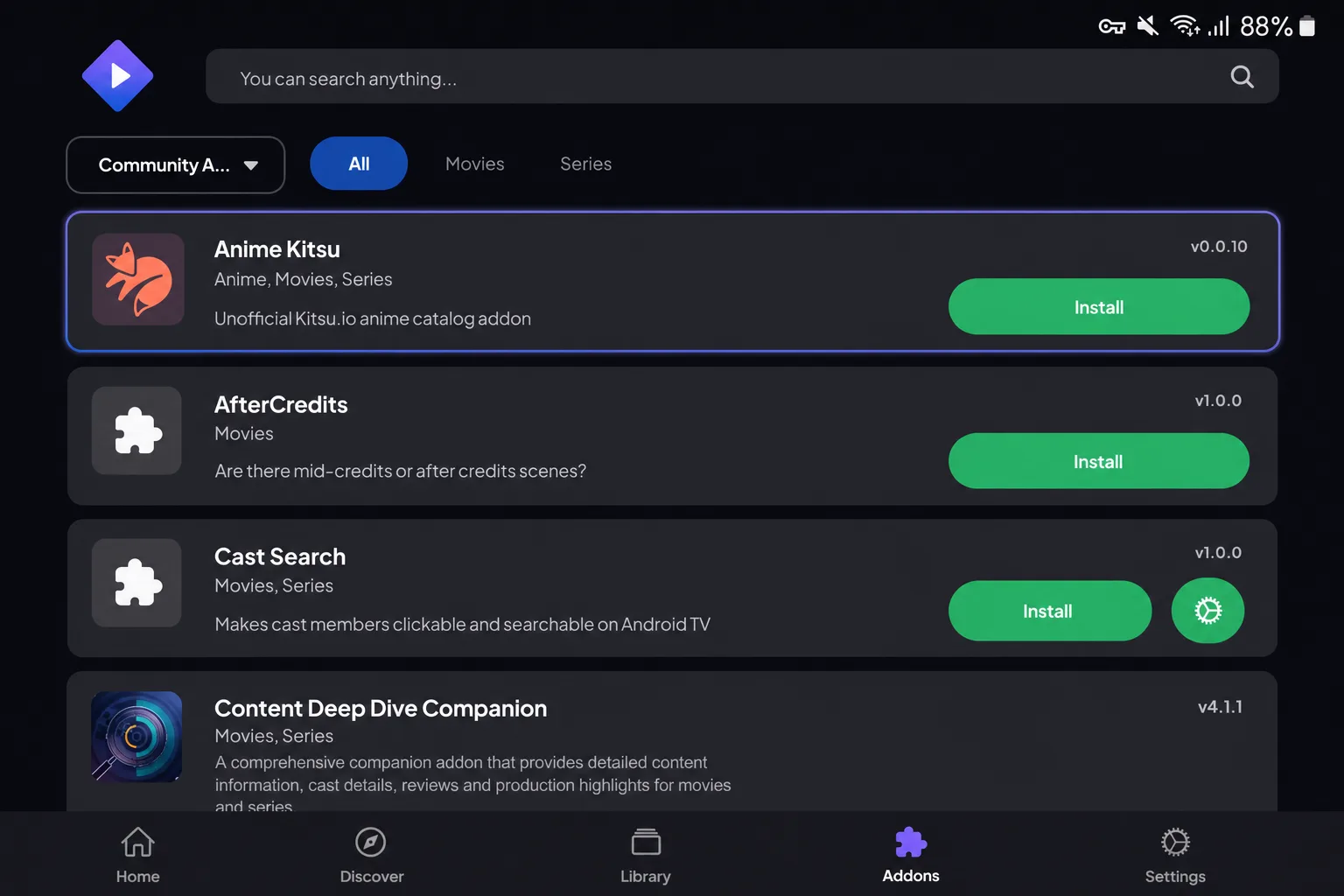
The quick way, on the device: open Stremio, go to the Add-ons section (the puzzle-piece icon), open Community Add-ons, find one, and select Install. To add one that is not listed, use the Add-on Repository option and paste its URL.
The syncing way, from any browser: sign in to a free Stremio account on your Fire Stick or ONN box first. Then, on your phone or computer, open the add-on's install page and click Install, and it drops into your account and syncs to every device you are signed in on. Set it once and it follows you.
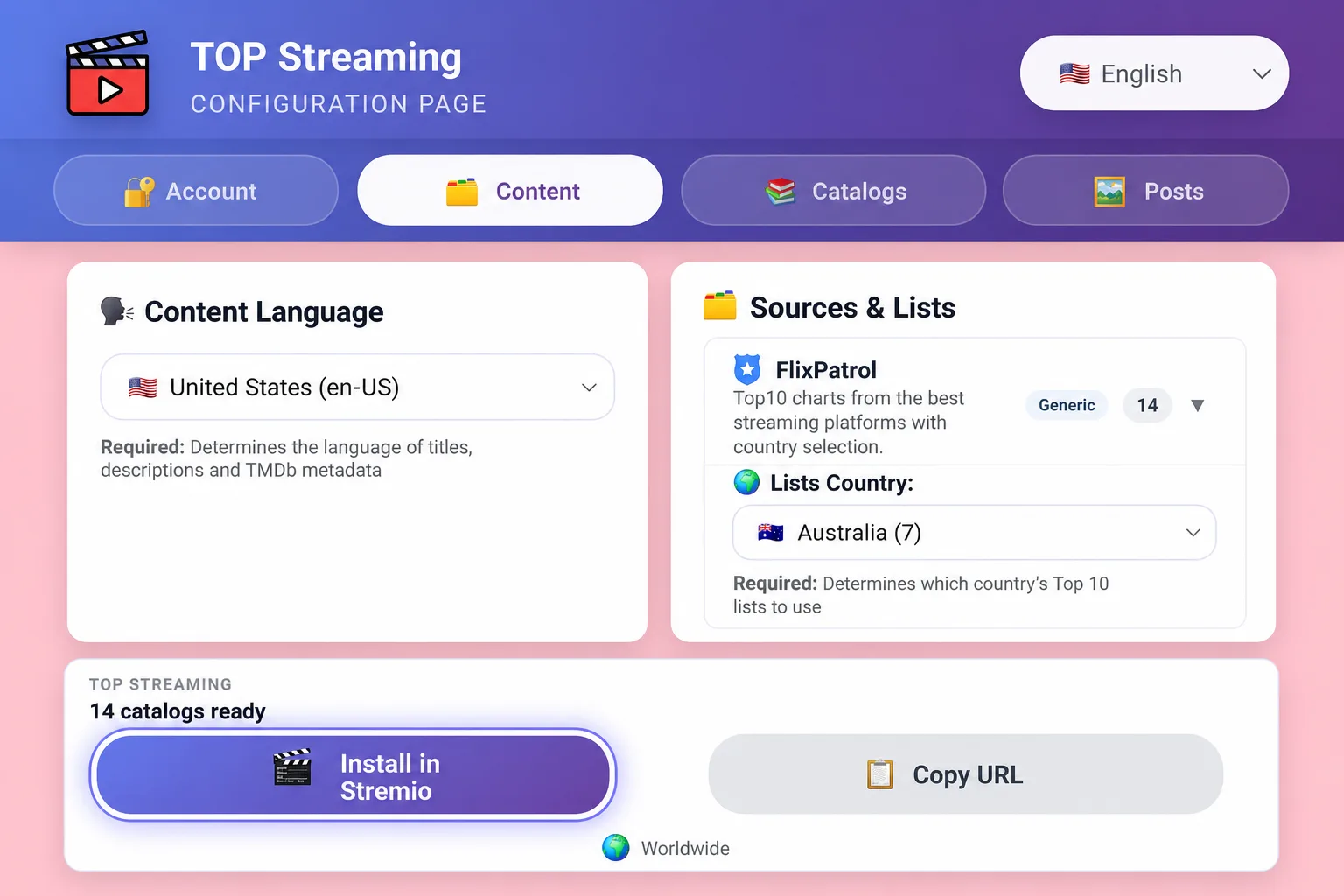
The add-on to start with: Top Streaming
If you only add one, make it Top Streaming. It brings in trending and top-list catalogs plus streaming sources, so Stremio fills up with something to watch straight away.
- Make sure you are signed in to your free Stremio account on your Fire Stick or ONN box.
- On your phone or computer, go to top-streaming.stream/configure.
- Set any options it offers, then click Install. It opens Stremio and adds itself to your account.
- Back on your TV it is already there and synced. Open a title and Top Streaming lists what it found, sorted by quality.
Two more worth keeping on: Cinemeta, the official catalog add-on behind Stremio's posters and search (usually on by default), and OpenSubtitles for subtitles in dozens of languages.
Turn on your VPN before you stream
Add-ons pull streams from all over, so a VPN matters here more than most apps. Without one your internet provider sees everything and can throttle your streams, which is a lot of what "buffering" really is. We use IPVanish, connect it to a United States server, then open Stremio. Here is why a VPN matters on a Fire Stick.
If Stremio will not stream
- Make sure you installed at least one streaming add-on, not just the catalog. A fresh Stremio with no source will not play anything.
- Connect your VPN and try again, some add-ons are blocked by certain providers.
- If one stream stalls, back out and pick the next one down the list.
- Restart the app, or the device if it has been on a while.
Stay private on your Fire Stick with IPVanish
It's the VPN I run on my own Fire Stick. It hides what you stream and sideload from your internet provider, and unblocks a lot more.
Frequently asked questions
Is Stremio free?+
Yes. Stremio itself is free, and the add-ons that stream through it are free too.
Does Stremio work on a Fire Stick and an ONN box?+
Yes. On a Fire Stick you install it through TV Wizard or LinkDrop; on an ONN or Android TV box it is often right in the Google Play Store. The add-ons work the same on both.
Do I really need add-ons?+
Yes, that is the key thing. Stremio without add-ons is an empty shelf. Add one like Top Streaming and it comes alive.
Do I need a VPN for Stremio?+
You should. Add-ons stream from many sources, and a VPN keeps that private and often smoother. See our VPN guide.
A stream keeps buffering, what do I do?+
Connect your VPN, then pick the next stream down the list. Most buffering is either a slow source or provider throttling, and one of those two fixes it.
Comments0
Join the conversation. Be kind, and no piracy talk.