
Firestick App Won’t Open? Get Around Amazon App-Launch Blocks using Virtualizer App
Fix Firestick apps that refuse to open by checking storage, updates, permissions, VPN setup, and using this app to launch around Amazon blocks.
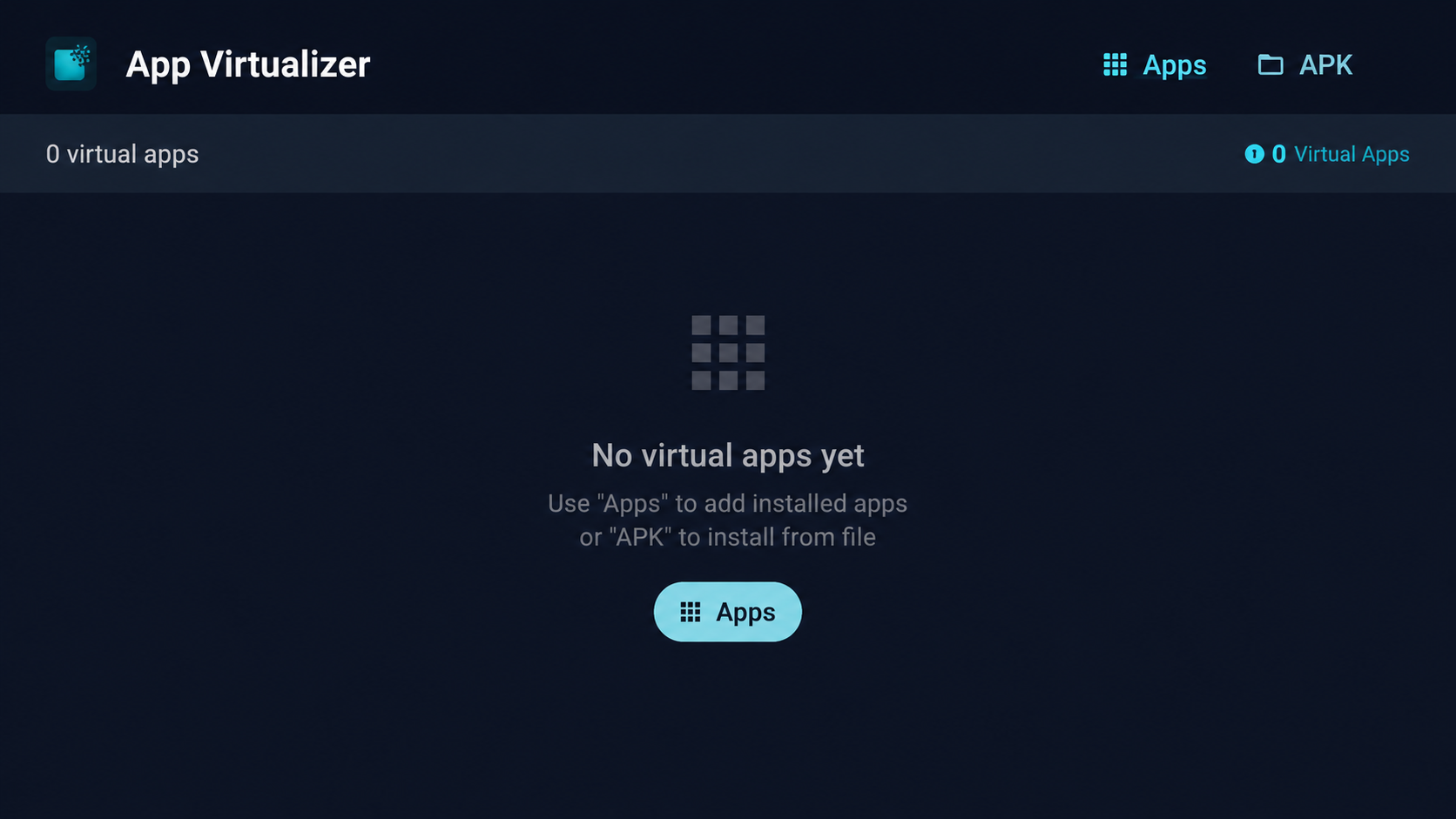
If an installed Firestick app refuses to open, do not keep reinstalling it right away. Check the Fire Stick basics first, then use this app as the launch workaround when Amazon blocks or filters the normal app tile.
Start with the Fire Stick checks that actually matter
A blocked launch can look like an app problem, but the Fire Stick itself is often the reason the app will not open. Before changing apps, check storage, updates, and power.
- Open Settings from the Fire TV home screen.
- Go to My Fire TV.
- Open About.
- Check the free storage shown on this screen.
- Aim for a few GB free, around 3 GB is a good target.
- Select Check for Updates and install any Fire OS update available.
- Keep the Fire Stick plugged into the wall power adapter, not the TV USB port.
The TV USB port often cannot power the stick properly during updates. If updates fail, apps fail to install, or the Fire Stick acts strange, plug it directly into the power brick and try again.
Make sure Developer Options and Downloader permissions are correct
If you are using sideloaded apps, the Fire Stick has to allow Downloader to install them.
- Open Settings.
- Go to My Fire TV.
- Open Developer Options.
- Select Install Unknown Apps.
- Turn Downloader to On.
If Developer Options is missing, open My Fire TV > About, highlight your device name, and click it 8 times. For the full walkthrough, use my Developer Options guide here: /firestick-developer-options.
For the full sideloading setup, use this guide instead of guessing through the menus: /how-to-sideload-apps-firestick.
Connect IPVanish before opening stores or updating apps
I recommend IPVanish on Fire Stick. Keep it simple:
- Get IPVanish.
- Open the app and sign in.
- Set the protocol to WireGuard.
- Connect to a United States server.
For best results, turn on auto-connect inside IPVanish so it connects when the app opens or when Android starts. Once IPVanish is connected, leave it running while opening stores, updating apps, or launching apps that previously failed.
Install the latest store setup
Use the current store setup so your apps are updated. If you need the bigger store list, use my app stores page: http://linkdrop.store
Use these in this order:
- TV Wizard, easiest option. Open Downloader and type newstore.tv. Install TV Wizard, my own setup app. It installs the app stores for you, including LinkDrop, Unlinked, and LinkBase, so you do not have to add them one by one.
- LinkDrop, my own store. Open linkdrop.store and click Explore the collection to open the library. No code is needed.
- Unlinked. Type unlinked.link in Downloader, install it, choose New Library, and enter the code firestick.
- Install the Virtualizer App from the Linkdrop store found under Tools and Utilities
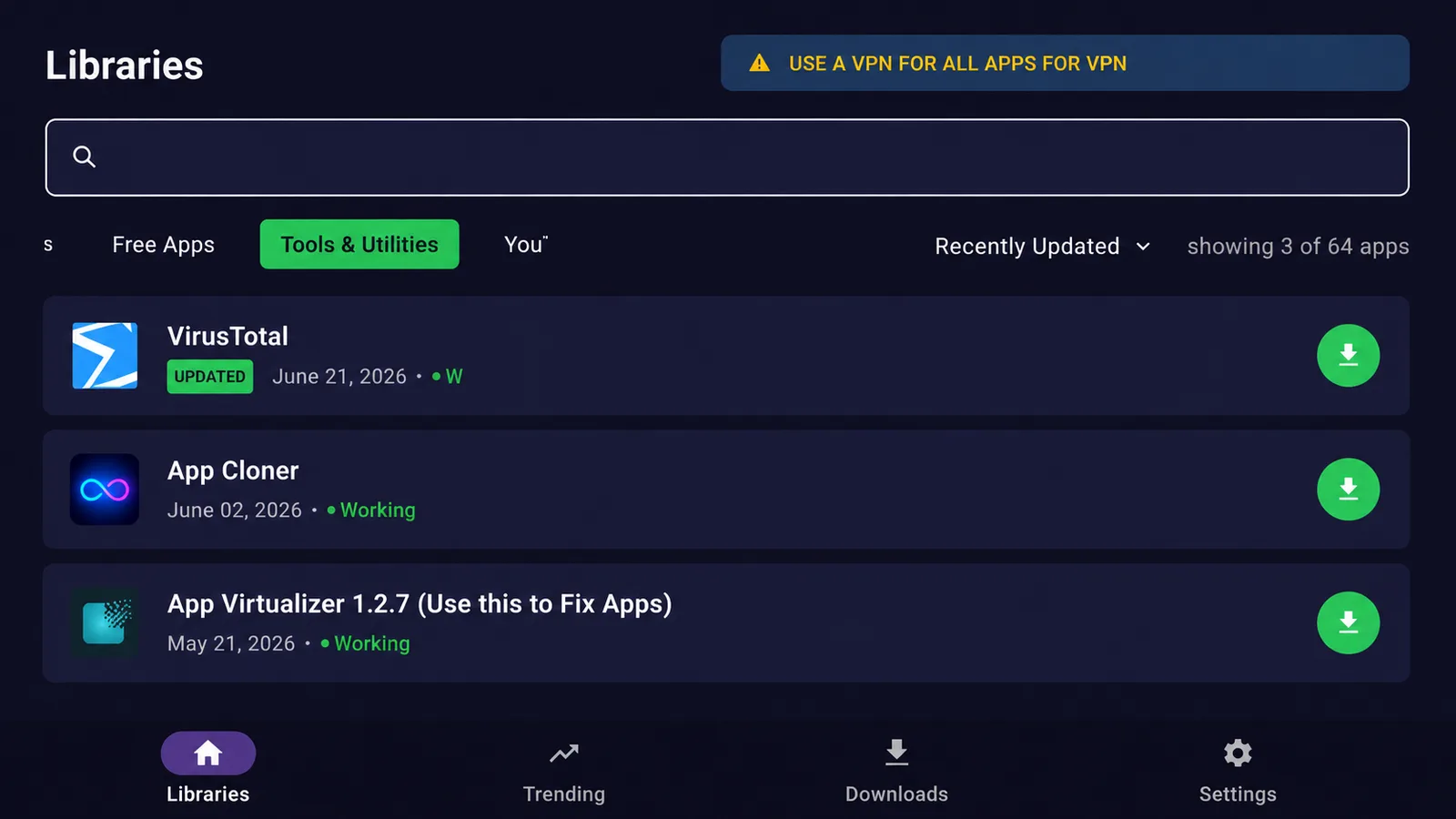
Use this app when Amazon will not launch an installed app
When Amazon blocks or filters the normal launch tile, the app may already be installed correctly but still refuse to open from the Fire TV home screen. Use this app to launch it instead.
- Make sure IPVanish is connected to a United States server with WireGuard.
- Open the Virtualizer App after the install
- Go to the installed apps or app-launch area.
- Find the app that will not open from the Fire TV home screen.
- Select that app inside this app.
- Choose the launch or open option.
- If the app opens from there, keep using this app as the shortcut when the Fire TV home tile fails. Do not open the app by clicking the app icon simply open the App inside the virtualizer
This is the workaround to try when the app is installed, storage is fine, permissions are on, but Amazon still refuses to launch it normally.
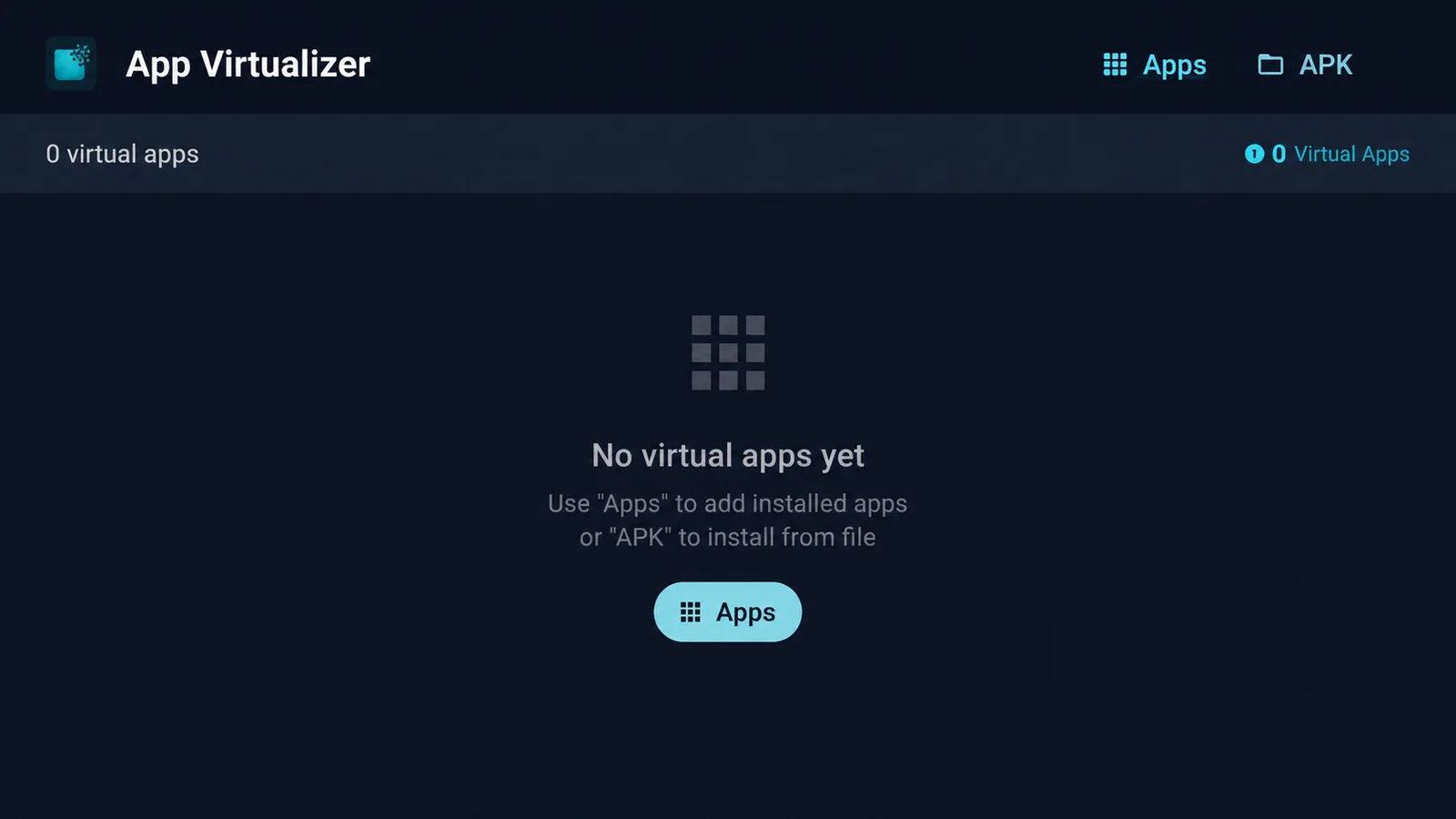
If the app still will not open
Run through these fixes in order. Do not skip the update and power checks, because those cause a lot of Fire Stick issues.
- Restart the Fire Stick after any Fire OS update.
- Confirm you still have a few GB of free space.
- Confirm the Fire Stick is plugged into the wall adapter.
- Confirm Downloader is still set to On under Install Unknown Apps.
- Connect IPVanish again using WireGuard and a United States server.
- Install the latest version of the app again from TV Wizard at newstore.tv or LinkDrop at linkdrop.store.
- Open it through this app instead of the Fire TV home tile.
If one app fails but other apps open, replace that app with the newest version from the store. If several apps fail at the same time, check Fire OS updates, storage, power, and IPVanish first.
Best setup order for a clean fix
Use this order when a Firestick app will not open and you want to rule out the common problems fast:
- Plug the Fire Stick into the wall power adapter.
- Check free storage under Settings > My Fire TV > About.
- Install any Fire OS update.
- Enable Developer Options if needed.
- Turn Downloader on under Install Unknown Apps.
- Connect IPVanish to a United States server with WireGuard.
- Install TV Wizard from newstore.tv.
- Update or reinstall the app from your store.
- Launch the blocked app through this app.
Stay private on your Fire Stick with IPVanish
It's the VPN I run on my own Fire Stick. It hides what you stream and sideload from your internet provider, and unblocks a lot more.
Frequently asked questions
Does this work on the newer Fire OS?+
Yes. The menus may look a little different between Fire OS versions, but the path is basically the same: Settings > My Fire TV > About for updates and storage, then Developer Options for unknown app permissions.
How much free space should my Fire Stick have?+
Keep a few GB free. Around 3 GB free is a good target before installing stores, updating apps, or troubleshooting launch problems.
What if Developer Options is missing?+
Go to Settings > My Fire TV > About, highlight your Fire Stick device name, and click it 8 times. After that, go back one screen and Developer Options should appear.
Do I need a code for the store?+
Not if you use TV Wizard from newstore.tv or LinkDrop at linkdrop.store. TV Wizard installs the stores for you, and LinkDrop opens with Explore the collection. Unlinked uses the code firestick.
Does this still work in 2026?+
Yes, as long as you keep Fire OS updated, use the current store setup, and install updated app versions from TV Wizard or LinkDrop.
What should I do if the app opens once and then fails again?+
Reconnect IPVanish to a United States server with WireGuard, restart the Fire Stick, and open the app through this app again instead of the Fire TV home tile.
What if Downloader is not allowed to install apps?+
Open Settings > My Fire TV > Developer Options > Install Unknown Apps and turn Downloader to On. If you need the full setup, use /how-to-sideload-apps-firestick.
Comments0
Join the conversation. Be kind, and no piracy talk.