
How to Install Velora TV on Firestick or Android TV
Velora TV is a new all in one app with movies, shows, 4,000+ live channels and sports, and no sign up. Here is how to install it on a Fire Stick, ONN or Android TV.
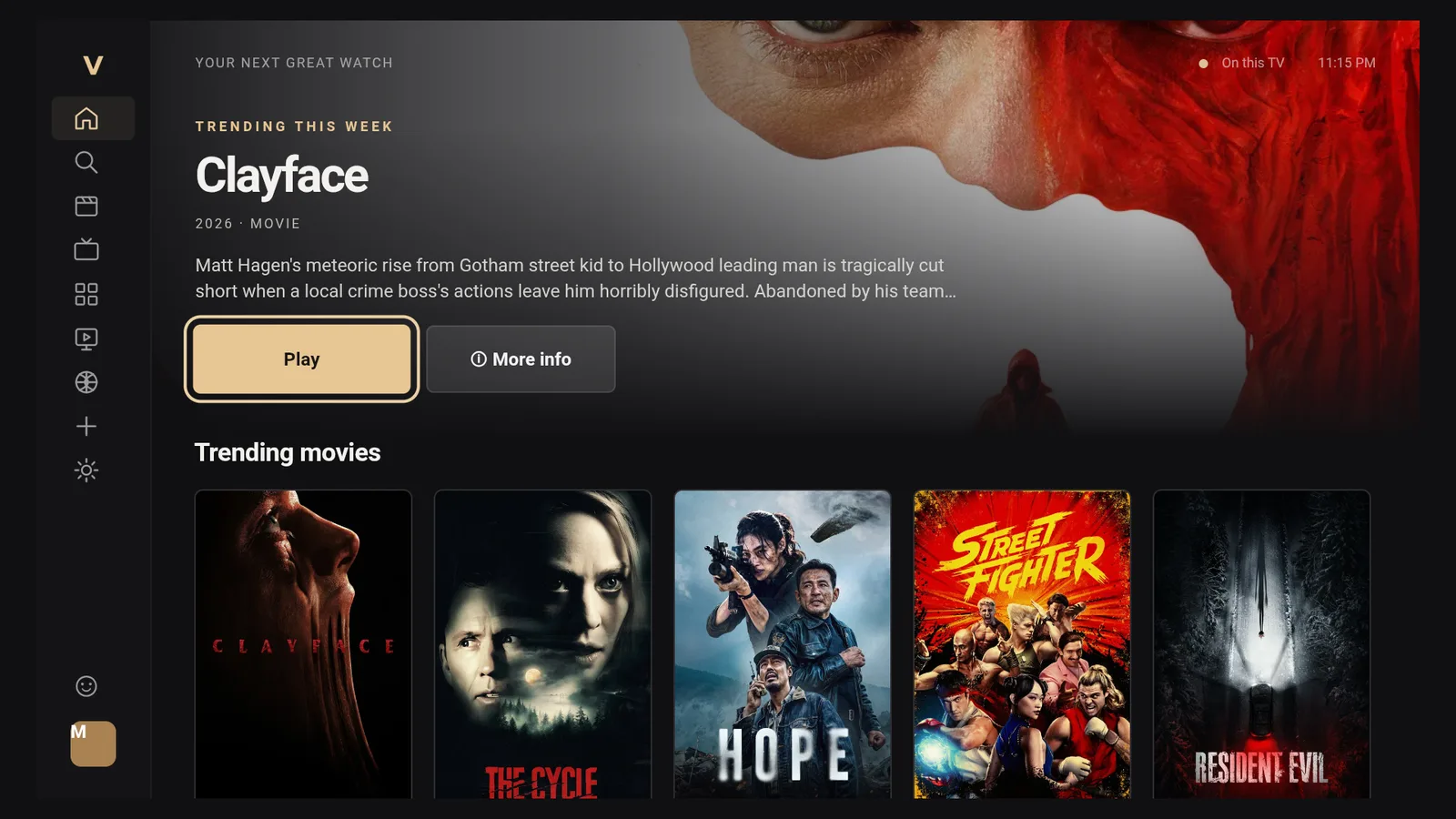
Velora TV is one of the newest apps in LinkDrop, and it has made my November list straight away. If you like FlixVision, this one feels similar: movies, TV shows, live TV and sports in one app, laid out for a TV remote. There is no sign up, and you are browsing within seconds of opening it. Here is how to install it on a Fire Stick, ONN box or Android TV, and how to find your way around.
What Velora TV gives you
- Movies and Series, with a Trending row on the home screen.
- Providers, to browse by streaming service.
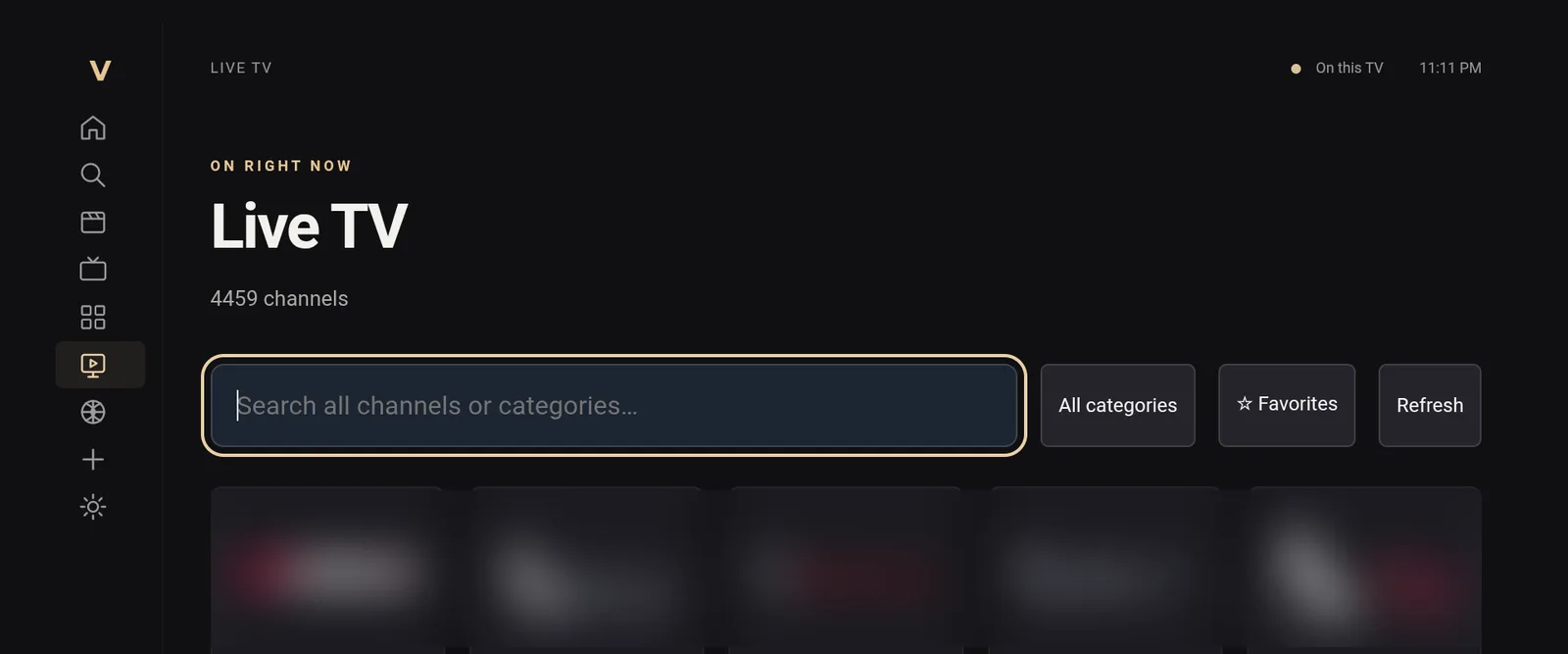
- Live TV, which loaded 4,459 channels in my test, with search, categories and favourites.
- Sports, in its own section.
- Profiles, including a separate Kids profile.
- No account needed. It opens straight into the app.
The version in LinkDrop right now is Velora 2.2, about 36 MB.
Install Velora TV on a Fire Stick
Velora is not in the Amazon Appstore, so you install it through our free tools.
- In Downloader, type newstore.tv to install TV Wizard, my setup app. It puts the app stores in for you in one go.
- Open LinkDrop, either from TV Wizard or by typing linkdrop.store into Downloader and clicking Explore the collection.
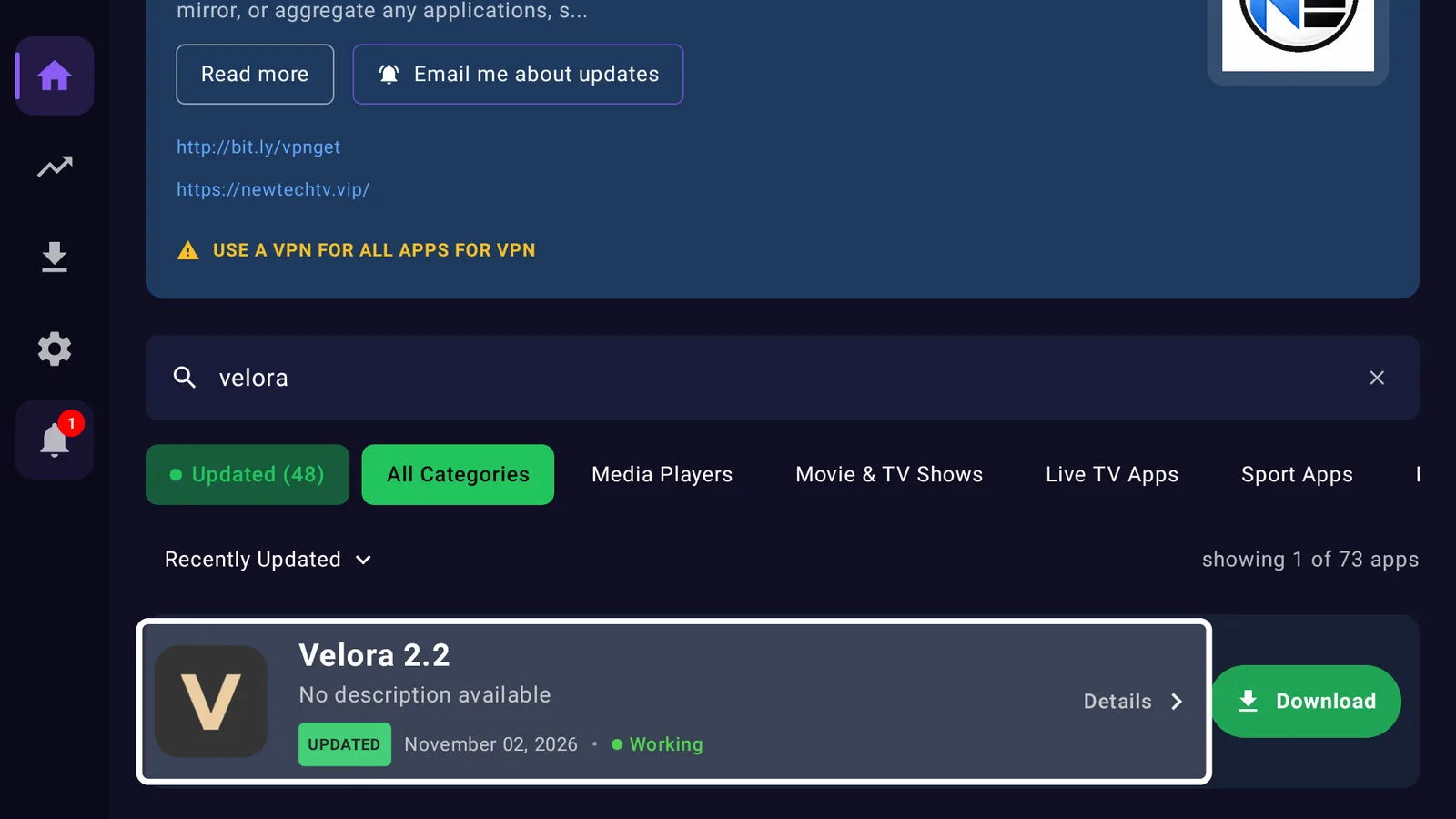
- Search for Velora and select Download.
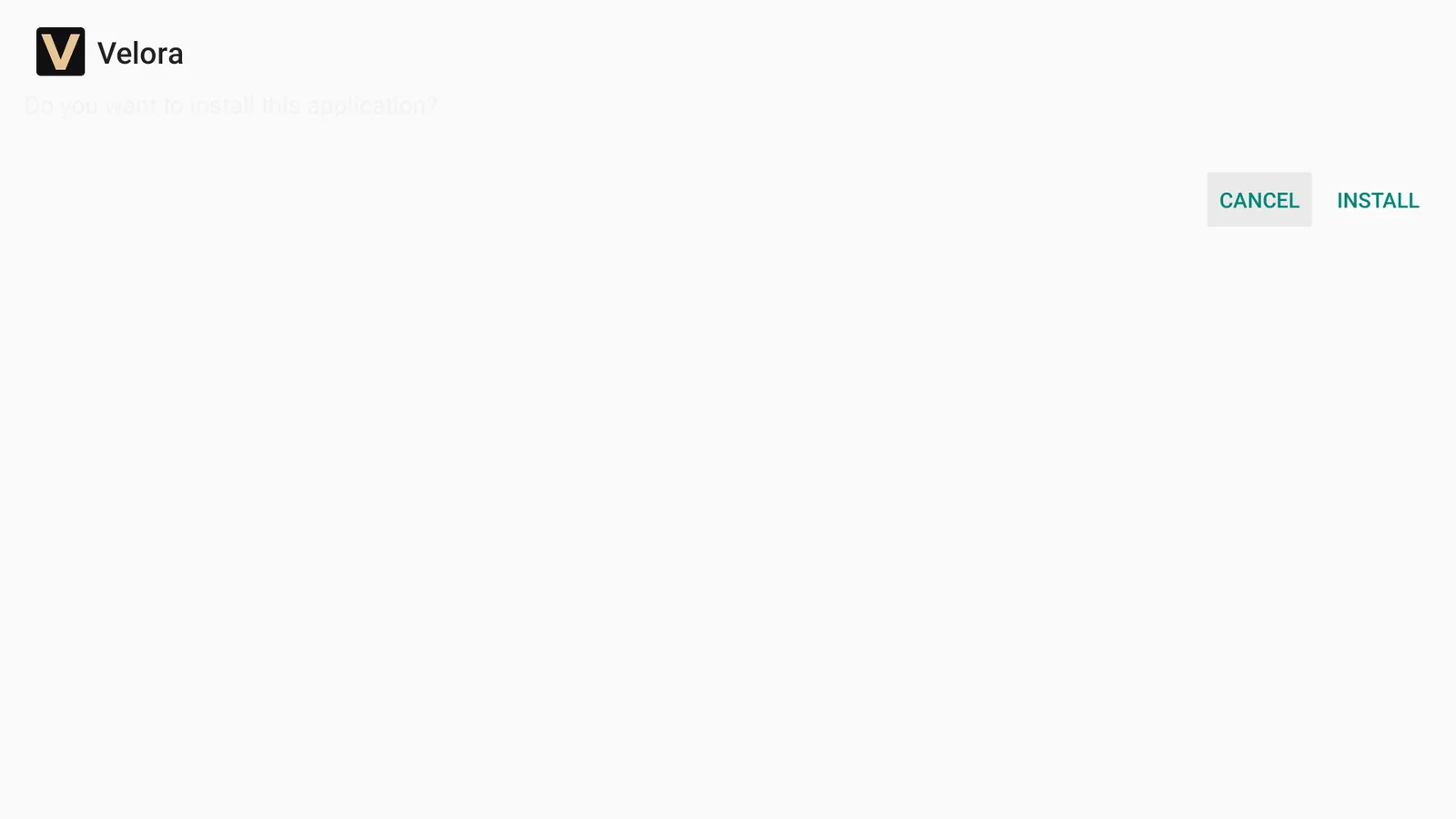
- When your Fire Stick asks if you want to install it, select Install.
- Select Open, or find Velora at the end of Your Apps and Channels.
First time sideloading? The sideloading guide covers every step, and if Downloader is blocked, turn on Install Unknown Apps first.
Install Velora TV on an ONN 4K or Android TV box
Open LinkDrop on the box, search for Velora, and install it from there. The steps are the same as on a Fire Stick.
Finding your way around
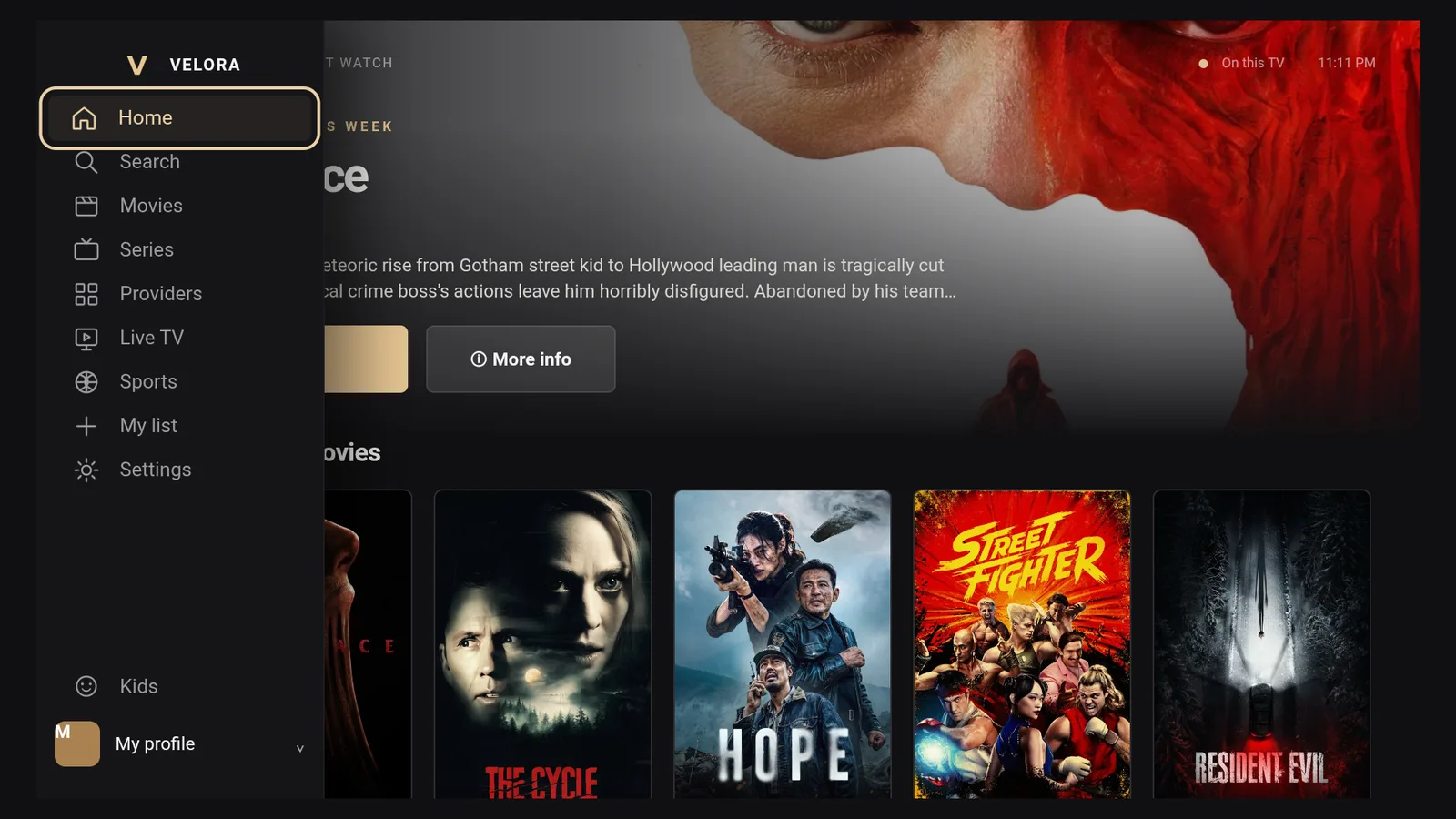
Press left on the remote to open the menu: Home, Search, Movies, Series, Providers, Live TV, Sports, My list and Settings, with Kids and your profile at the bottom.
To watch something, open a title, select Play, and give it a few seconds while it says "Getting media from servers". Some streams have ads or promotions running over the video, which is common with free sources. Do not click or sign up for anything they show. If a stream is cluttered, go back and try again.
The home screen also has a small advertisement box in the corner now and then. It does not get in the way of browsing.
Live TV
Live TV opens on a search bar with All categories, Favorites and Refresh next to it. Type a channel or category name to jump straight to it, or press the star on any channel to save it to Favorites.
Profiles and the Kids mode
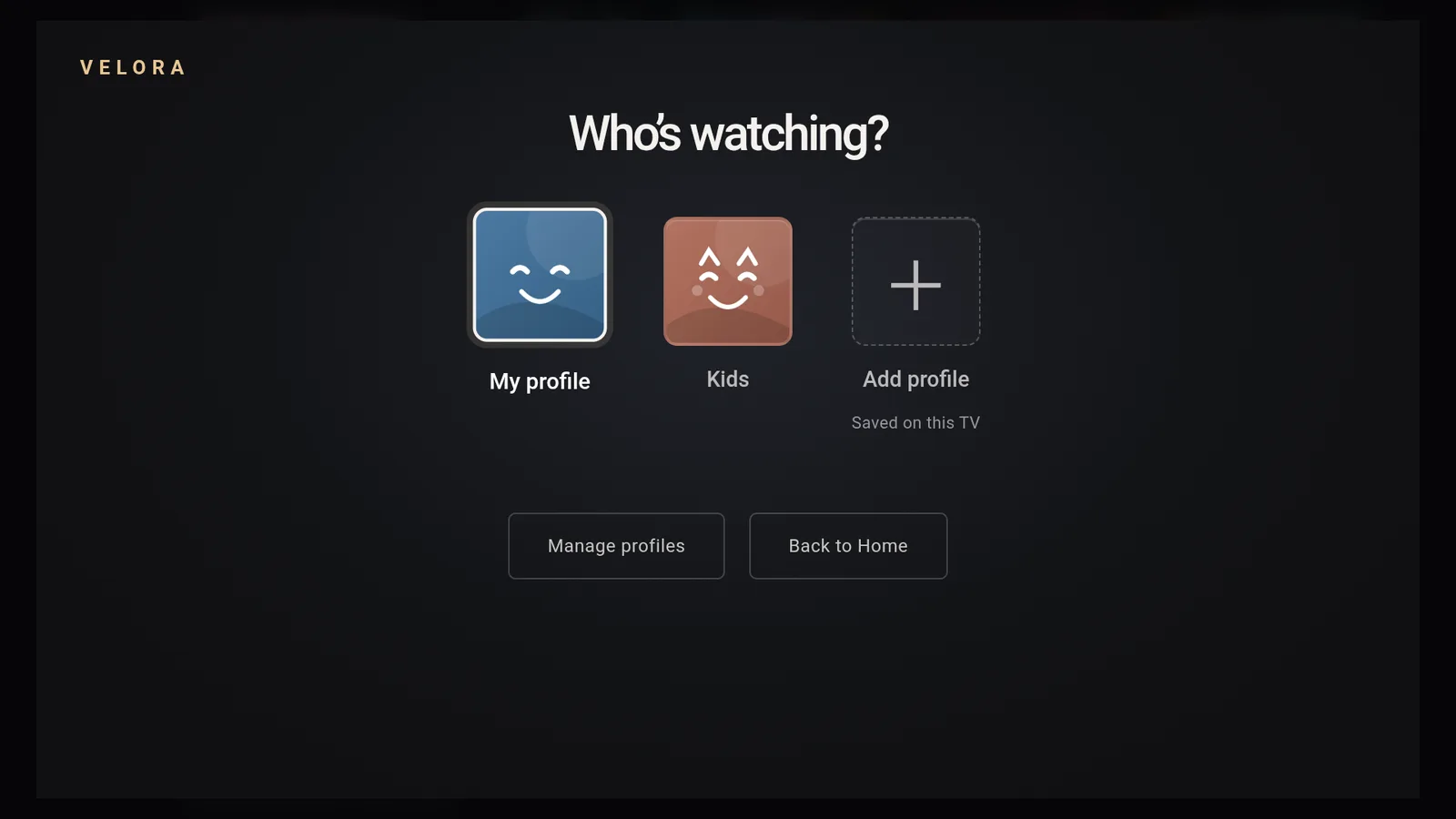
Velora keeps a separate profile for each person, and your list and history stay on that profile. Choose Kids at the bottom of the menu and the app switches to family movies and shows, with the live TV and sports sections hidden. To leave it, open the menu and choose Exit Kids, then pick your profile on the Who's watching? screen.
Settings worth knowing
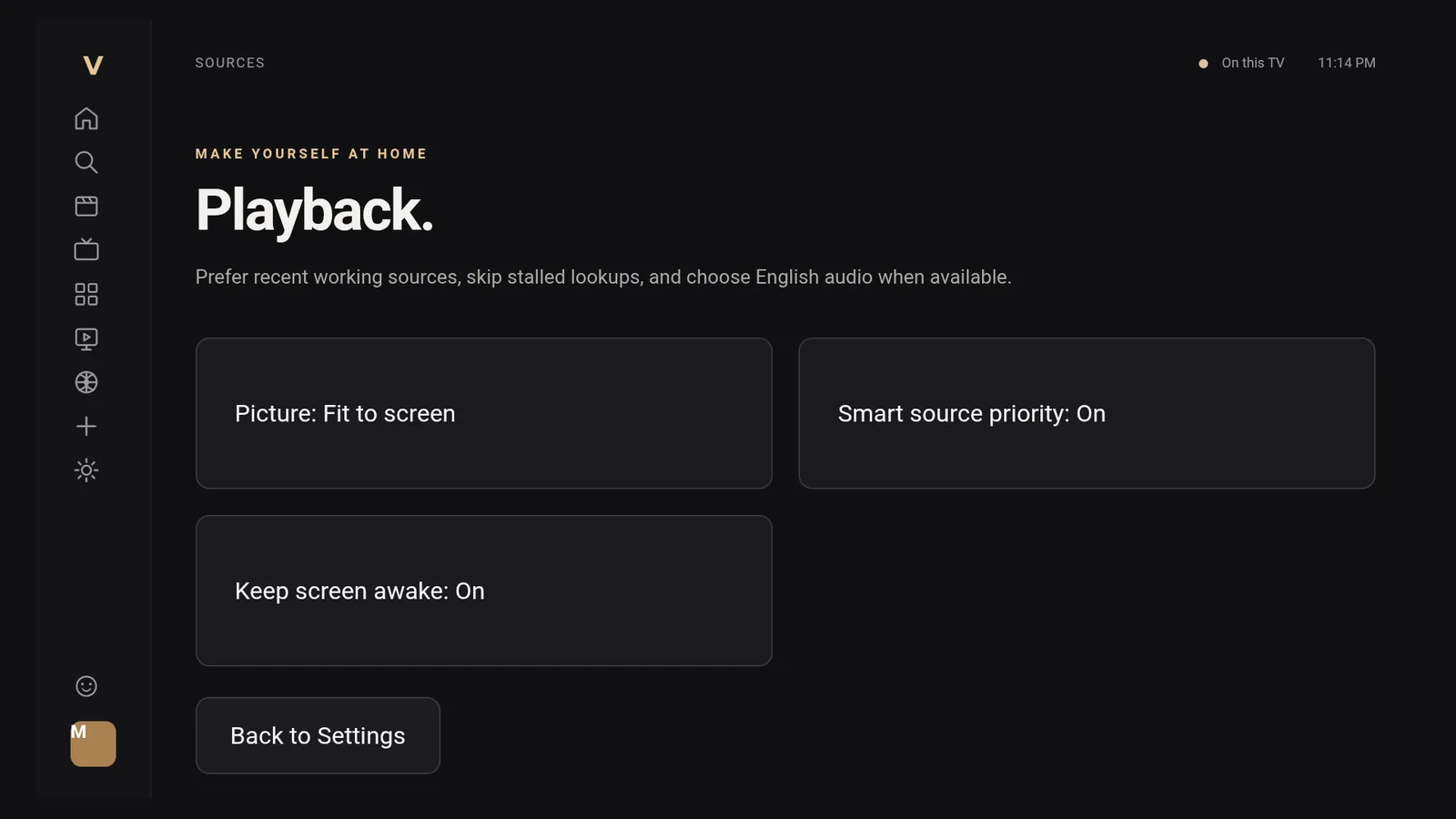
Open Settings from the menu. Everything here is saved on your TV only.
- Playback preferences: Smart source priority tries recently working sources first and skips ones that stall. Keep screen awake stops the screensaver from kicking in during a film. I leave both on.
- Updates: shows your version and has Check for updates, with Automatic checks on by default.
- Content: Block adult content is on by default, and it is always on in the Kids profile.
Turn on your VPN first
Velora pulls from a lot of free sources, so connect a VPN before you stream. Without one, your provider can see what you watch and may throttle it, which is behind a lot of buffering. I use IPVanish on a United States server. Here is why a VPN matters on a Fire Stick.
A VPN is for privacy. It does not make content you are not authorized to watch okay to watch, so stick to what is legally available where you live.
If a stream will not play
- Go back and press Play again. Leave Smart source priority on so it can skip sources that stall.
- Try a different title to check whether it is one source or the whole app.
- Reconnect your VPN.
- Open Settings, Check for updates, or reinstall the latest Velora from LinkDrop.
- Restart the Fire Stick or ONN box if it has been on for a while.
Stay private on your Fire Stick with IPVanish
It's the VPN I run on my own Fire Stick. It hides what you stream and sideload from your internet provider, and unblocks a lot more.
Frequently asked questions
Do I need an account for Velora TV?+
No. It opens straight into the app, and your profiles and list are saved on the TV.
How many live channels does Velora have?+
It loaded 4,459 channels in my test, with search and categories to find them.
Is Velora TV like FlixVision?+
Yes, it is a similar all in one experience, with movies, shows, live TV and sports in one place.
Is there a kids mode?+
Yes. Choose Kids in the menu. Adult content is always blocked there.
Is Velora in the Amazon Appstore?+
No. Install it from LinkDrop, or through TV Wizard with newstore.tv in Downloader.
Velora is on the November list with the other apps I am running this month.
Comments0
Join the conversation. Be kind, and no piracy talk.