
Installing PlayTorrio and Using It for Movies, TV Shows and Live TV
Install PlayTorrio on Firestick or Android TV, open movies, TV shows, and live TV, and fix remote, buffering, and missing episode issues.
PlayTorrio is an all-in-one streaming app for movies, TV shows, live TV, and extra categories like anime, music, manga, comics, and audiobooks. The easiest way to install it on Firestick or Android TV is to use TV Wizard first, then grab Play Torrio TV from LinkDrop.
What PlayTorrio does
PlayTorrio is an open-source media app built with Flutter. It pulls together several content types in one place:
- Movies and TV shows from direct and torrent-based scrapers
- Live TV and IPTV from community lists with working links checked automatically
- Anime, manga, comics, audiobooks, and music
- Debrid support for Real-Debrid, AllDebrid, Premiumize, and TorBox
- Stremio addon compatibility
The app supports modern ARM64 devices and older 32-bit Android devices through armeabi-v7a builds. ARM64 is the better pick when your device supports it.
PlayTorrio still works in 2026, but it is not perfect on every TV device. Android TV has had recent TV-focused updates with a better interface, improved live TV backend, and better performance. Fire TV Stick and Android TV users can still run into crashes, remote navigation problems, missing seasons, or source issues.
What you need before installing
You need a Fire TV Stick, Fire TV, ONN box, Google TV, or Android TV device that can install APK files.
Before installing PlayTorrio, check these basics:
- Free storage, the APK is roughly 50 MB, and extra space helps with cache
- A stable internet connection
- Downloader installed on your device
- Install unknown apps enabled for Downloader
- ARM64 APK for newer devices, armeabi-v7a if the ARM64 build will not install
- Optional debrid account if you want better cached sources
If you have never enabled sideloading before, use my full Firestick sideloading guide. If Developer Options is missing or Downloader is not allowed to install apps, fix that first with the Developer Options guide.
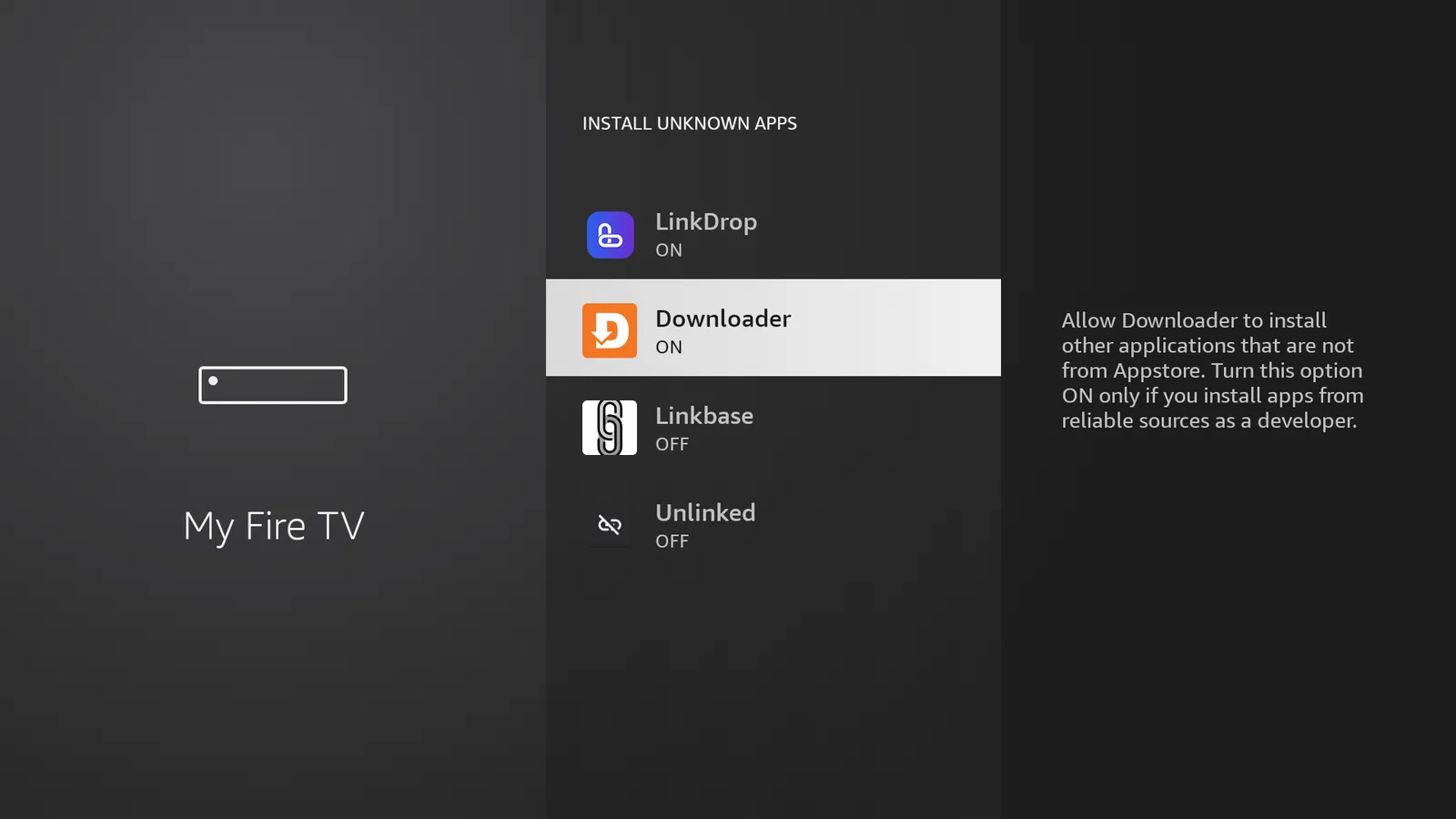
Install TV Wizard first
TV Wizard is the easiest route because it installs the app stores for you. That saves you from adding each store one by one.
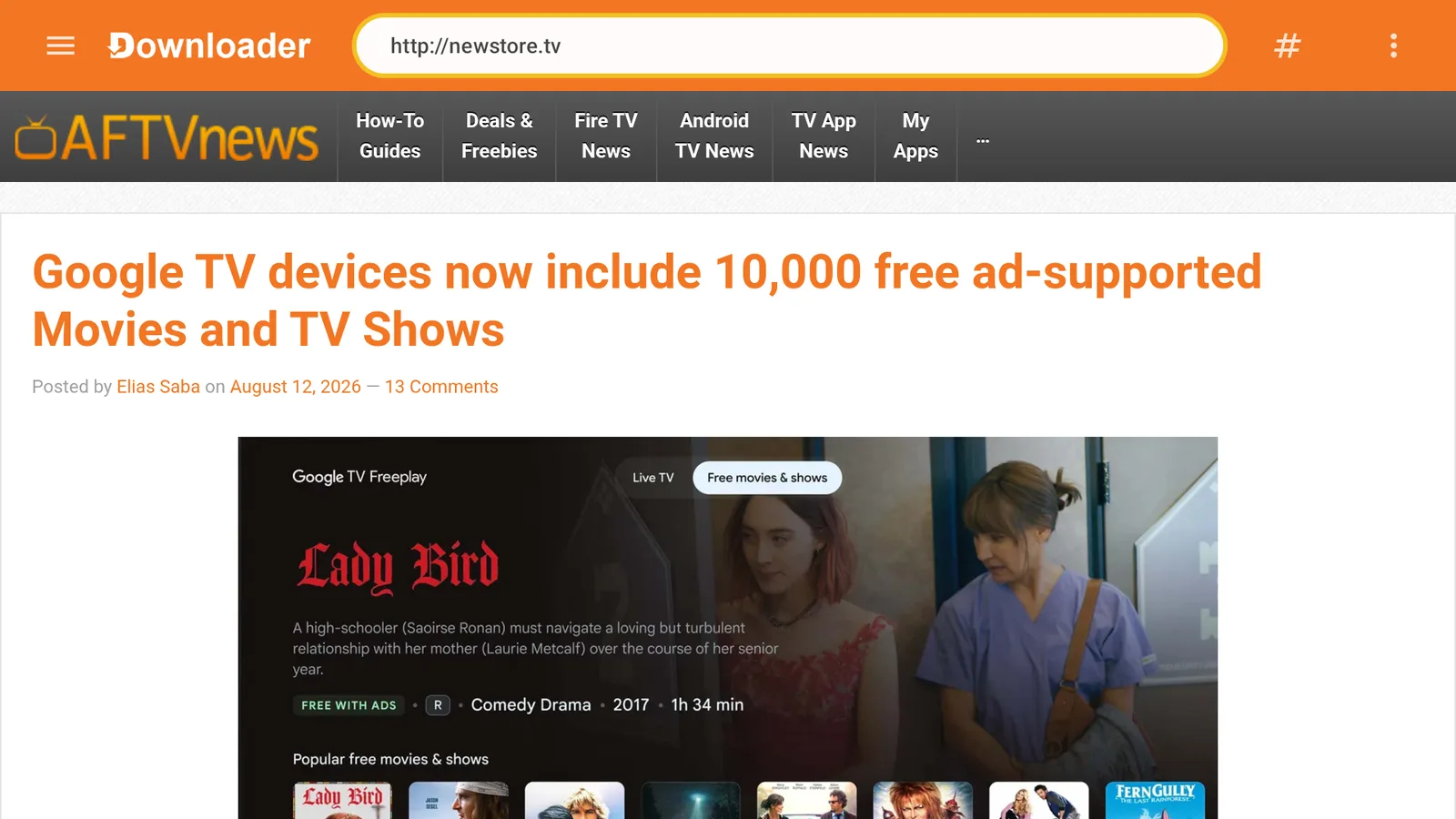
- Open Downloader on your Firestick or Android TV device.
- Select the URL box.
- Type newstore.tv.
- Download and install TV Wizard.
- Open TV Wizard.
- Follow the prompts to install the app stores.
If Downloader asks for permission to install unknown apps, allow it and return to the install screen.
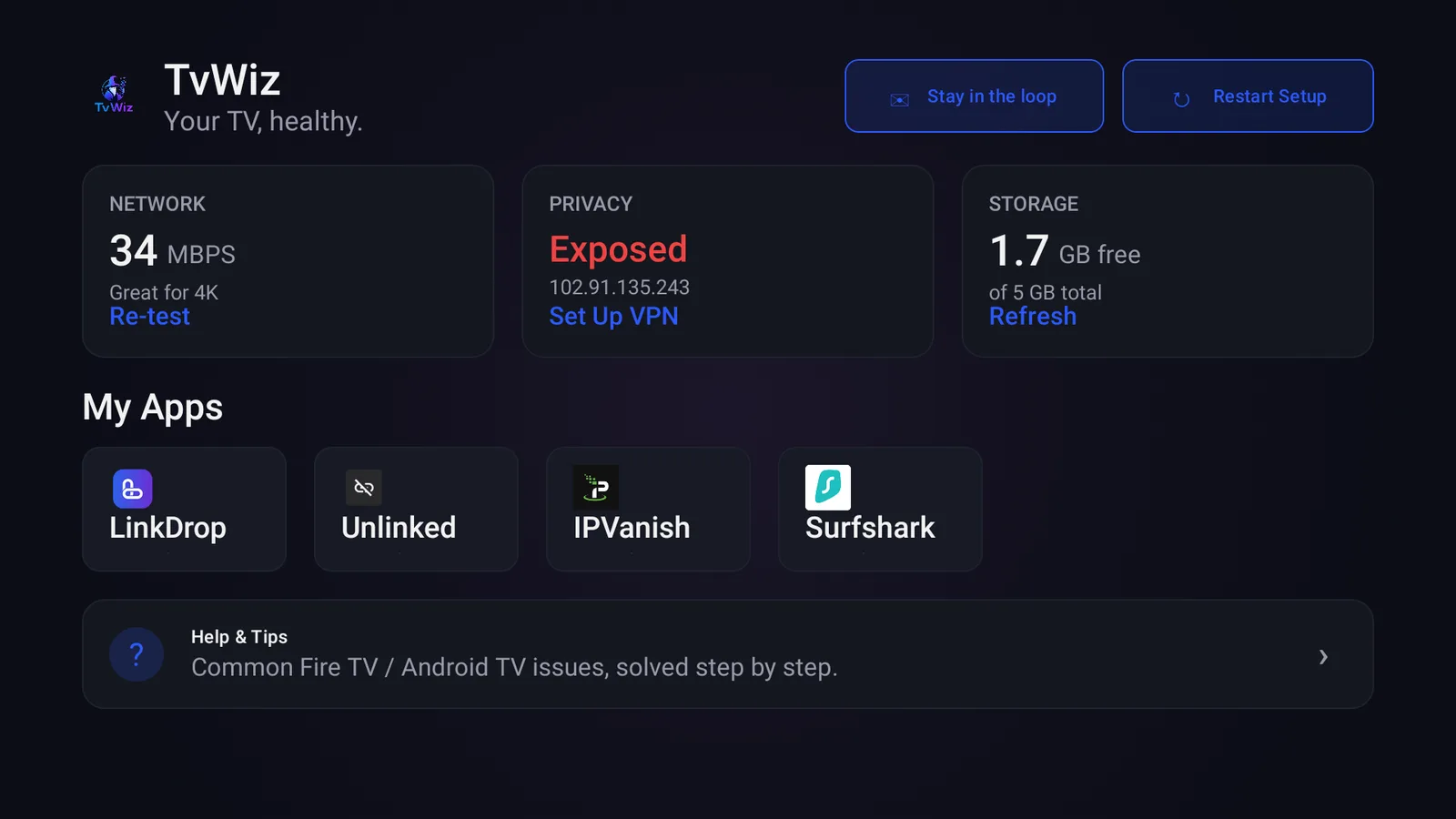
For a wider breakdown of store options and setup flow, use the best Firestick app stores guide.
Install Play Torrio TV from LinkDrop
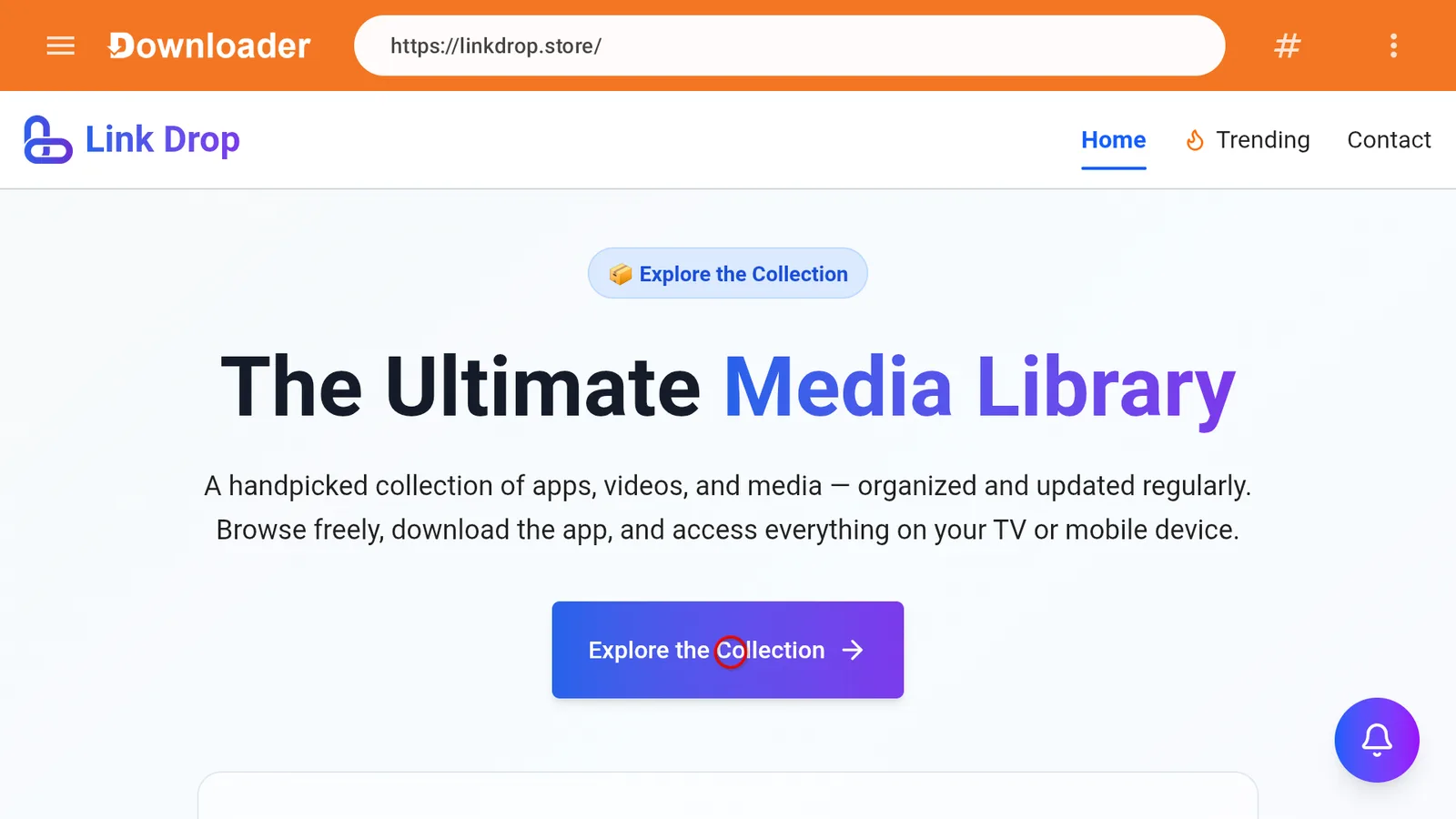
LinkDrop is the store to use when you want to find and install the app itself.
- Open Downloader, Silk Browser, or the browser option on your Android TV device.
- Go to linkdrop.store.
- Click Explore the collection.
- Find Play Torrio TV in the library.
- Select it and choose the download option.
- When the install prompt appears, choose Install.
- Open Play Torrio TV after installation, or find it in your apps list.
First setup after opening PlayTorrio
The first screen asks Who's watching? Select Profile 1 to go straight in, or choose Add Profile if more than one person uses the TV. Hold on a profile to manage it later.
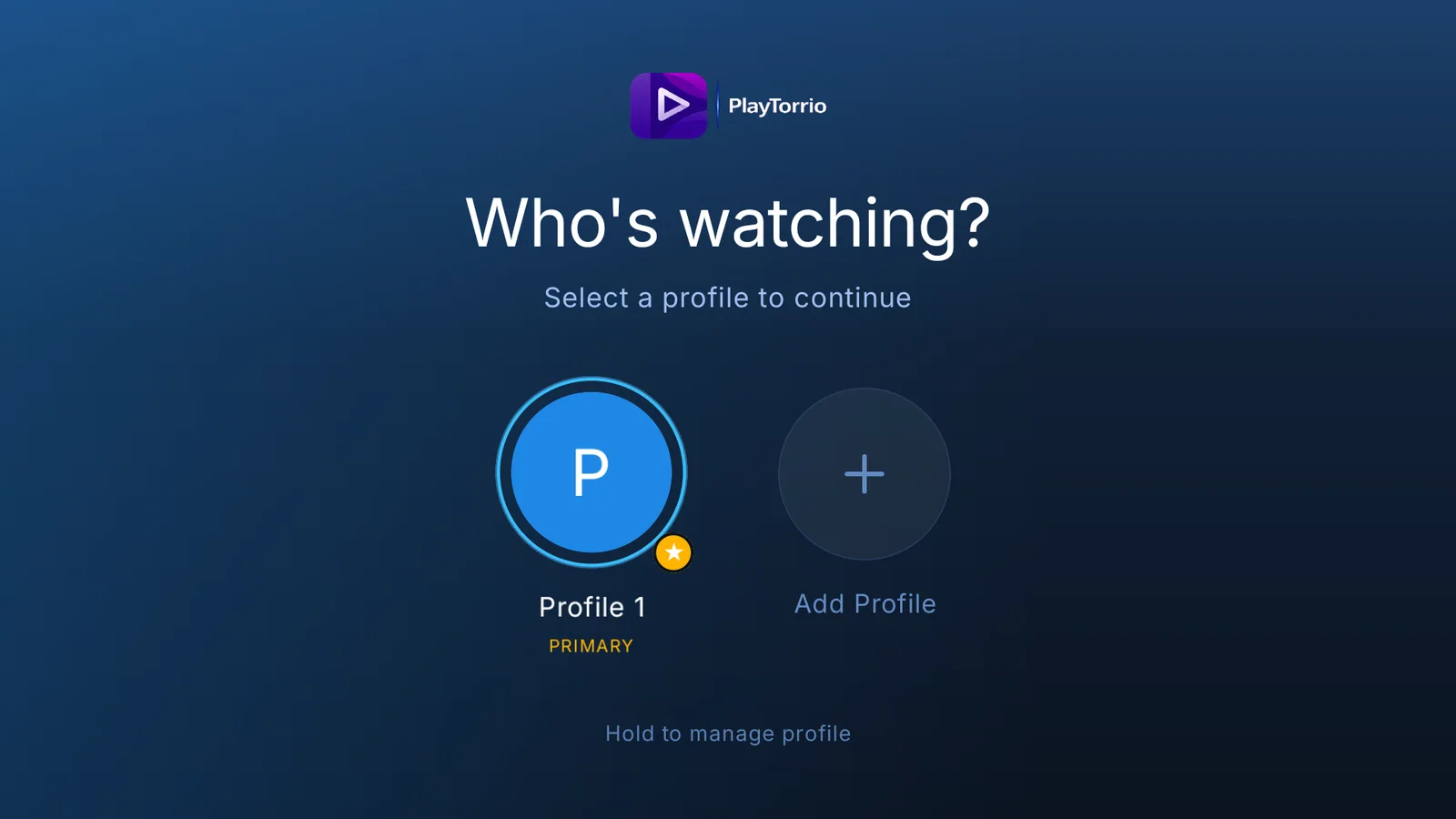
Open PlayTorrio and grant the permissions it requests. The first launch may take a little longer while the app loads sources, metadata, and live TV sections.
Good first setup order:
- Open Settings inside PlayTorrio.
- Sign in to your debrid service if you use Real-Debrid, AllDebrid, Premiumize, or TorBox.
- Check the streaming mode options, if shown, and choose the source type that works best on your device.
- Check metadata options such as TMDB enrichment.
- Back out to the home screen and test one movie, one TV episode, and one live TV channel.
If seasons or episodes are missing, turn off TMDB enrichment temporarily and check the show again. User reports point to TMDB enrichment causing incomplete season or episode displays on some builds.
Set up IPVanish before streaming
PlayTorrio pulls from torrent-based sources as well as direct ones, and torrent streaming can expose your IP address to peers. Only watch content you have the right to, and keep privacy in mind.
I recommend IPVanish for Firestick and Android TV streaming setups.
Use it like this:
- Get IPVanish.
- Open the app and sign in.
- Connect to a United States server.
- Use WireGuard as the protocol.
- Open PlayTorrio after the VPN connection is active.
If you want the longer explanation of why a VPN matters on a streaming device, read my Firestick VPN guide.
How to use PlayTorrio for movies and TV shows
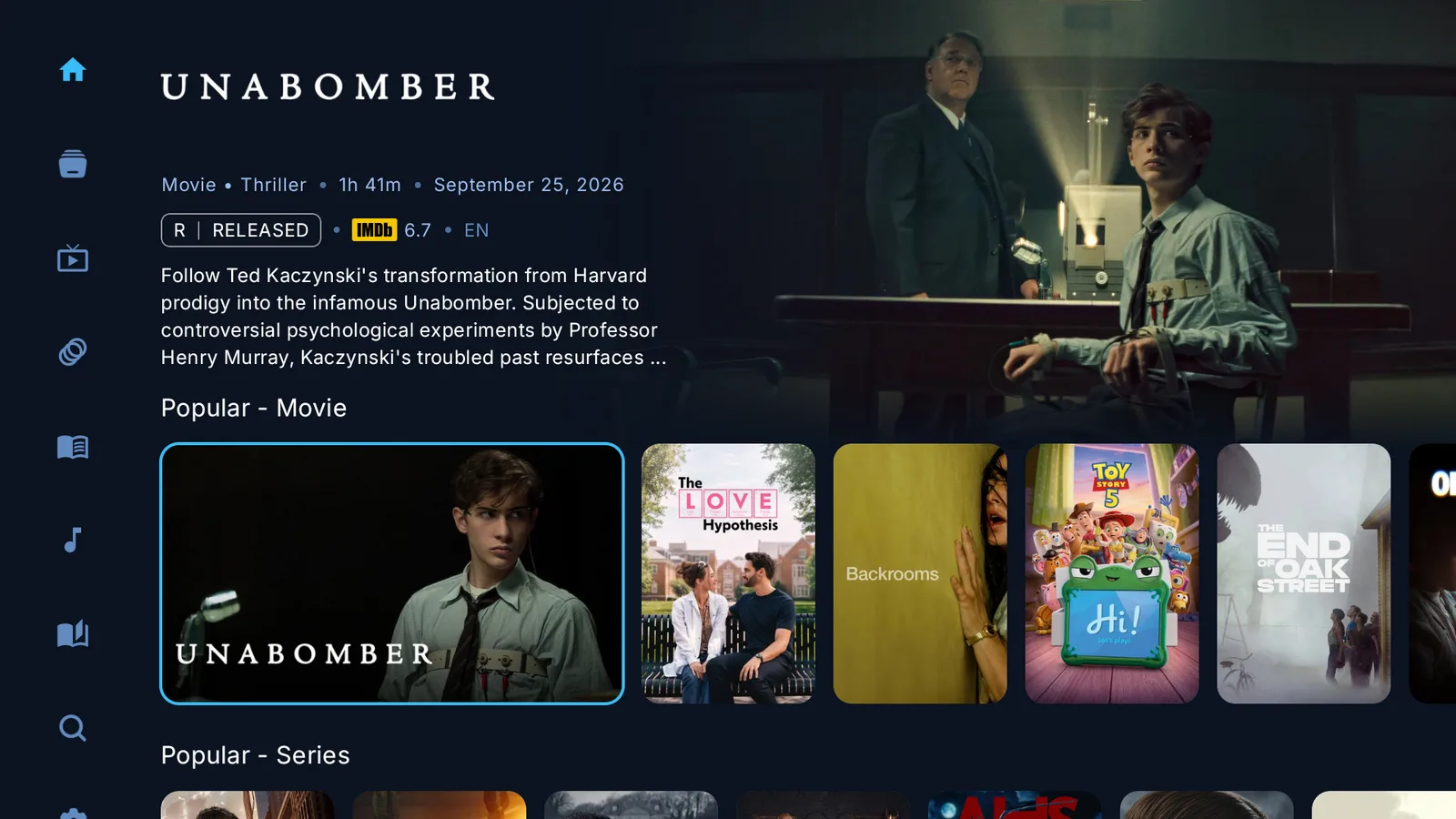
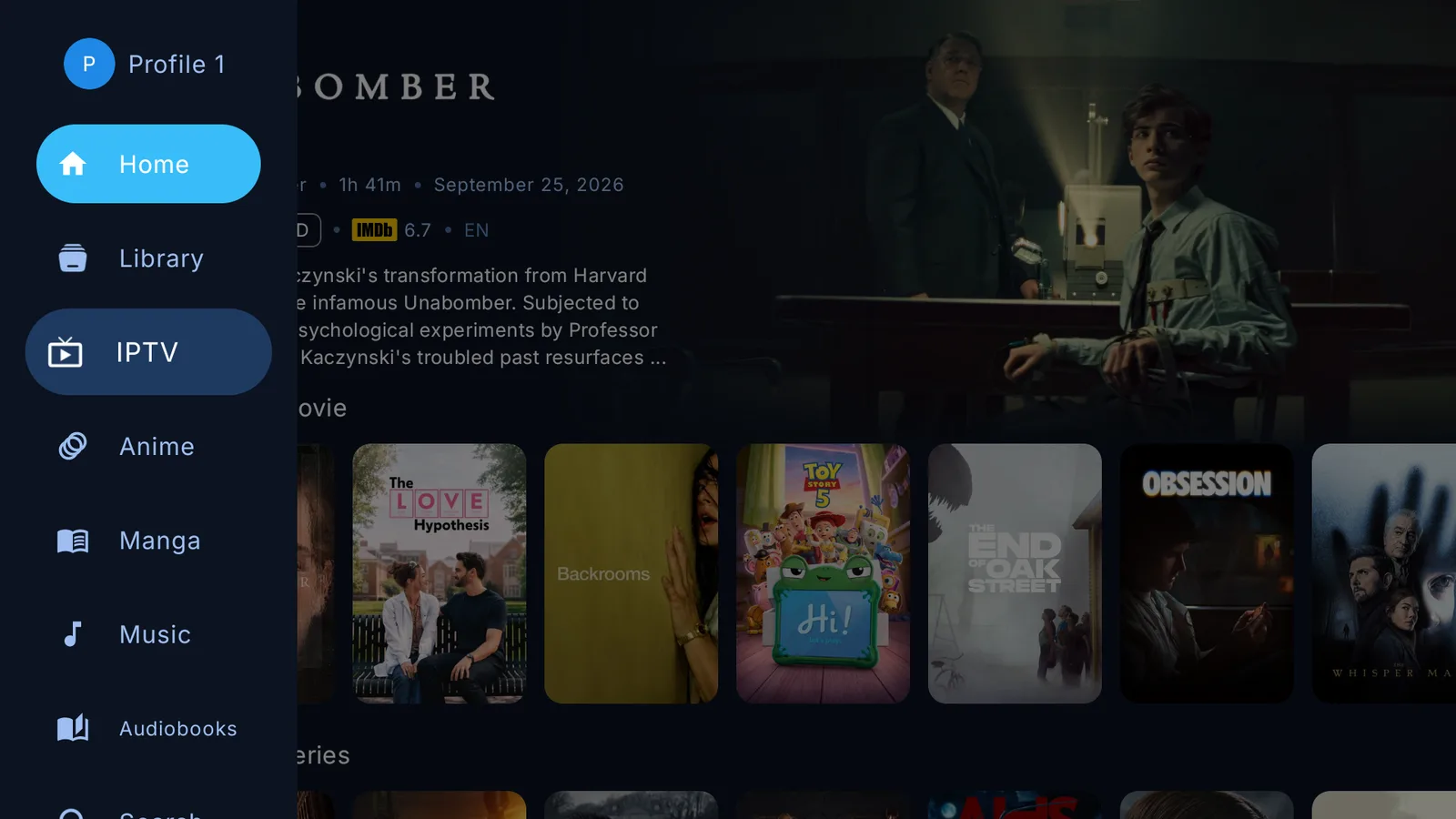
PlayTorrio works like most all-in-one streaming apps once it is installed. Press left on the remote to open the menu: Home, Library, IPTV, Anime, Manga, Music, Audiobooks and Search.
- Open PlayTorrio.
- Browse the Popular - Movie and Popular - Series rows on Home, or use Search.
- Pick a title.
- Choose a season and episode for TV shows.
- Wait for sources to populate.
- Select a source.
- If one source fails, back out and choose another.
Debrid sources are usually the better option when available because they can provide faster cached playback and higher quality links. Non-debrid sources can still work, but they are more likely to buffer, fail, or take longer to start.
How to use live TV in PlayTorrio
The live TV section pulls IPTV links from community lists and verifies working links automatically. That does not mean every channel will work every time, so treat live TV as something you may need to test by channel or category.
- Open PlayTorrio.
- Open IPTV from the menu. It fills itself from community sources, so there is nothing to set up. If you have your own portal or M3U playlist, add it with the Portals or M3U buttons at the top.
- Pick a category or channel list.
- Select a channel.
- If playback does not start, back out and choose another stream.
- Add channels to favorites if your build includes that option.
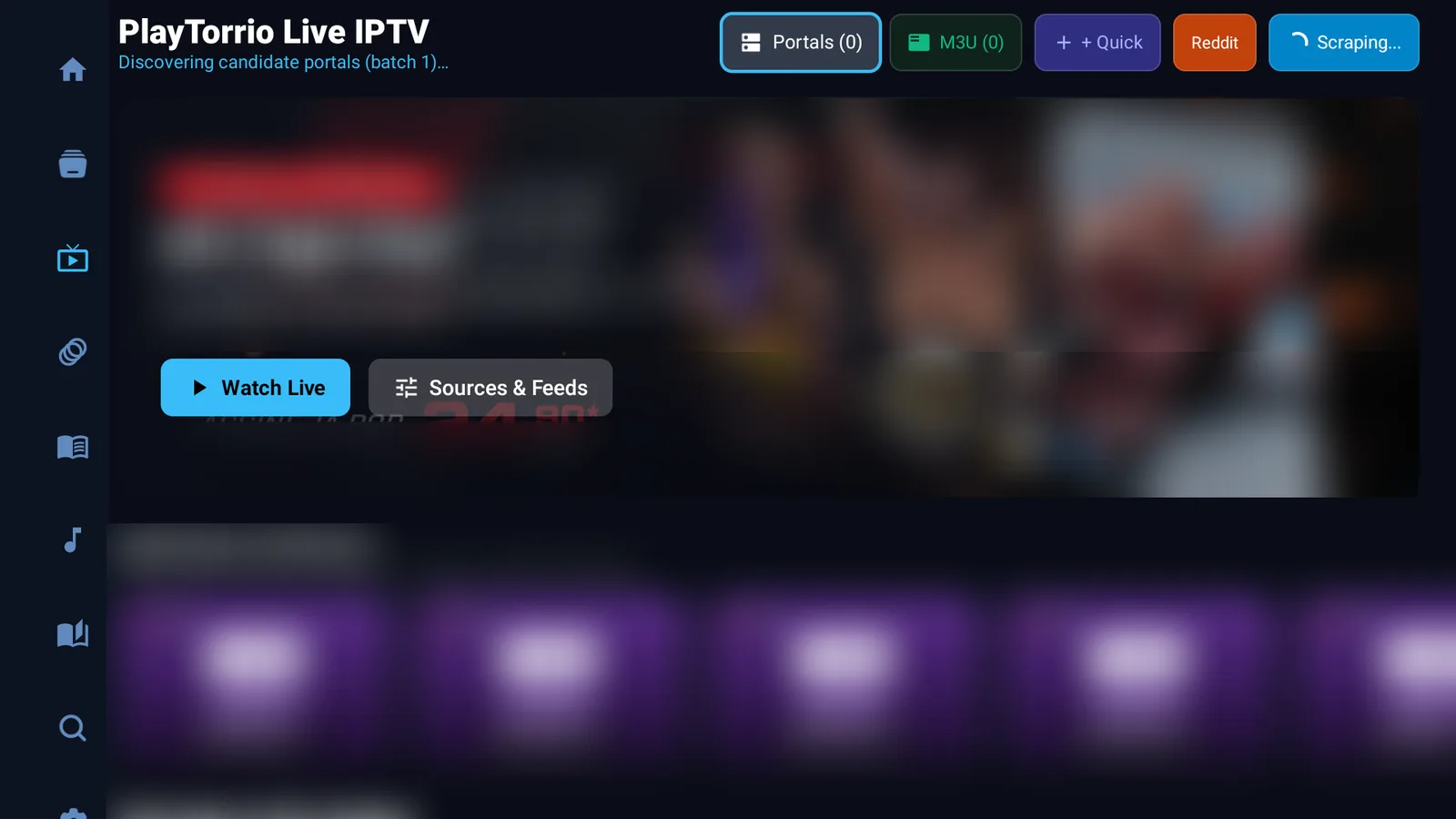
Live TV performance depends heavily on the source, your internet connection, and the current app build. If live TV buffers while movies work fine, the issue is usually that channel source rather than your whole setup.
Fix remote control and layout problems
Some Firestick and Android TV users report that PlayTorrio does not always fit the TV remote perfectly. Buttons can sit off-screen, highlight states can be unclear, or a section may be hard to reach.
Try these fixes:
- Make sure you installed the Android TV or TV-focused build, not a phone-only build.
- Restart the device.
- Clear the PlayTorrio cache.
- Check your TV display settings and disable overscan if your TV has that option.
- Use a Bluetooth mouse, USB mouse, or mouse-toggle style app if one screen cannot be reached with the remote.
- Update PlayTorrio when a newer Android TV release is available.
Fire TV devices can be stricter with apps that were not designed perfectly for Fire OS, so a mouse option is sometimes the quickest workaround.
Fix buffering, crashes, and missing content
Use this quick list when PlayTorrio acts up.
- App crashes before playback. It closes when sources load or playback starts. Clear the cache, restart the device, try another source, or reinstall the latest build.
- Missing seasons or episodes. A show page loads but some episodes are gone. Turn off TMDB enrichment for a while, refresh the title, or check another source.
- The remote will not reach a button. The highlight skips over a button or section. Use the TV build, adjust the display settings, or try a mouse option.
- Live TV buffers. Movies work but channels freeze. Try another channel link, connect IPVanish with WireGuard, or restart the app.
- Torrent sources are slow. Long loading or constant buffering. Use a debrid account if you have one, pick cached sources, or try a lower quality stream.
- Install fails. The app will not install. Reinstall the latest version from LinkDrop, free up storage, or turn on Install unknown apps for Downloader.
- The same source crashes every time. One source keeps breaking playback. Avoid that source for now, including playtorriohttp sources if they appear.
If PlayTorrio is too unstable on your device, try another app from LinkDrop. Good picks right now include Reezn, Cinema HQ, Clip Box, FlixQuest and Voltra TV, all on this month's list.
Keep PlayTorrio updated
PlayTorrio is installed as an APK, so it may not update like a normal Play Store or Amazon Appstore app. Some versions may include update prompts, but manual updates are still common.
To update cleanly:
- Open the same store or source you used to install it.
- Download the newer Play Torrio TV build.
- Install it over the current version if Android allows it.
- If the update fails, uninstall the old build and install the new one.
- Open PlayTorrio and test your movies, shows, and live TV again.
If you rely on favorites or app settings, check whether your build keeps them before uninstalling.
Stay private on your Fire Stick with IPVanish
It's the VPN I run on my own Fire Stick. It hides what you stream and sideload from your internet provider, and unblocks a lot more.
Frequently asked questions
Does PlayTorrio still work in 2026?+
Yes, but results vary by device and build. Movies, anime, and live TV are working for many users, while Android TV and Fire TV users can still run into crashes, remote navigation problems, and missing metadata.
Which PlayTorrio APK should I install?+
Install ARM64 first if your device supports it. Use the 32-bit armeabi-v7a build if the ARM64 APK fails to install or your device is older.
Why is PlayTorrio hard to control with my Firestick remote?+
Some builds still have TV layout issues. Install the TV-focused build, restart the app, check your display settings, or use a mouse option for screens the remote cannot reach.
Does PlayTorrio cost money?+
The app itself is free. Debrid services such as Real-Debrid, AllDebrid, Premiumize, and TorBox are optional paid services if you want cached sources and better playback.
Why are seasons or episodes missing?+
TMDB metadata enrichment can cause missing seasons or episodes on some builds. Turn off TMDB enrichment temporarily, refresh the title, and test another source.
Can PlayTorrio play live TV?+
Yes. Open the Live TV or IPTV section, choose a category or channel, and test streams. If one channel fails, try another because live TV links change often.
Why does PlayTorrio buffer on my Firestick?+
Try a different source, connect IPVanish to a United States server with WireGuard, clear the app cache, or use a debrid source when available.
How do I update PlayTorrio on Firestick or Android TV?+
Download the newest Play Torrio TV build from the same install method you used, then install it over the current version. If Android blocks the update, uninstall the old version and install the new one.
Comments0
Join the conversation. Be kind, and no piracy talk.