
BeeTV Not Working? Install CinePlus, the Replacement That Actually Works
BeeTV has stopped working for good. Here is CinePlus, the free replacement that does the same job with Fluid Player for playback, plus how to install both from the LinkDrop Store and get streaming again.
If you opened BeeTV today and it just spins, crashes, or loads nothing, you are not doing anything wrong. BeeTV has stopped working, and this time it is not coming back. The good news: I have already lined up the replacement, and honestly it is a better app anyway. It is called CinePlus, it plays through Fluid Player, and both are waiting in the LinkDrop Store right now.
First, why BeeTV died
Free streaming apps come and go. When the people running one shut it down, or its sources dry up, the app stops pulling in movies and shows and there is nothing left to fix on your end. Reinstalling BeeTV, clearing its data, or hunting for an "update" will not bring it back. So do not lose an afternoon to it. Move to the app that works.
Meet CinePlus, your BeeTV replacement
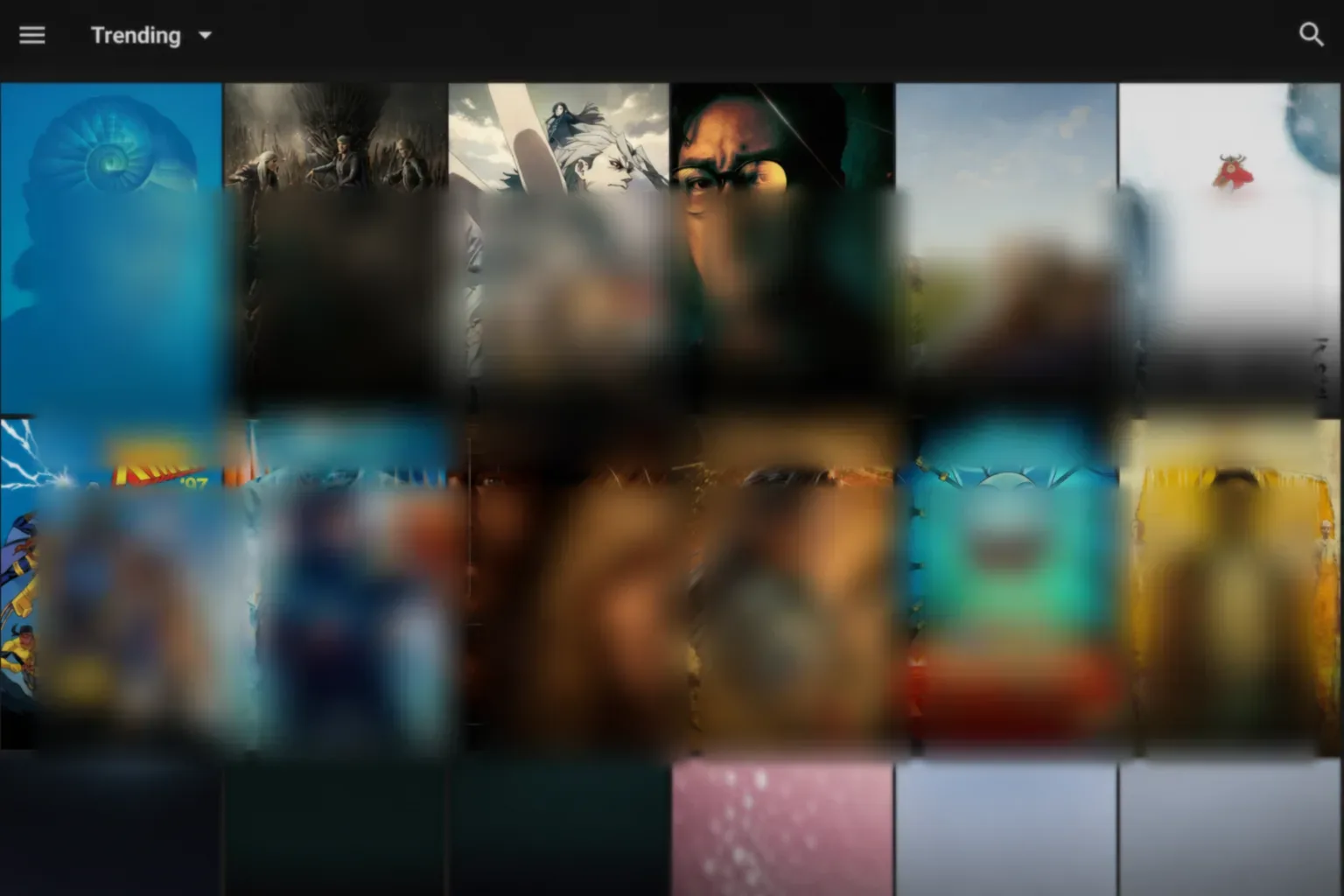
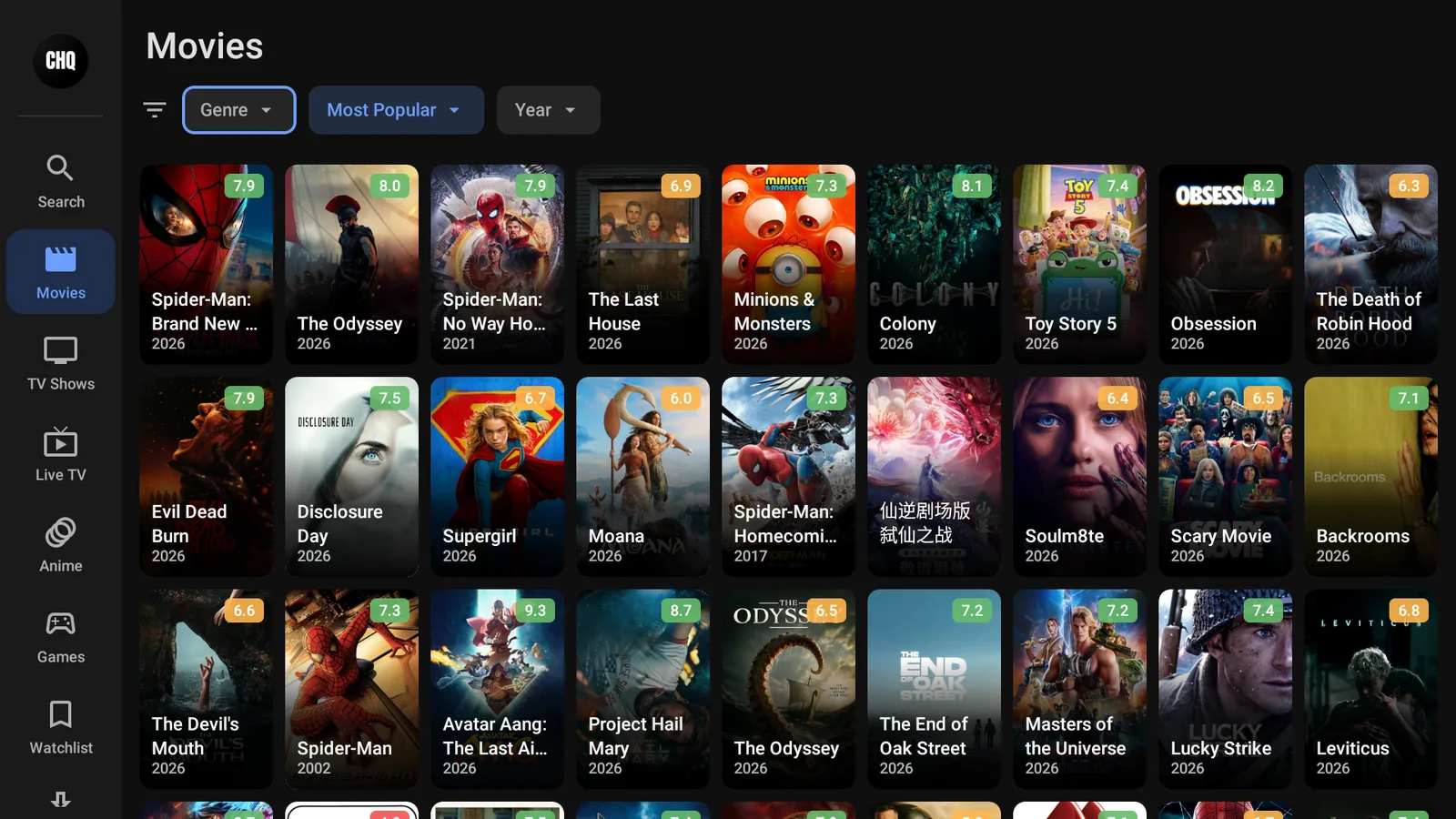
CinePlus does the same job BeeTV used to: it is an on-demand app for movies and TV shows, with a clean layout, posters, categories, and a search bar. You pick something to watch, CinePlus pulls in the streaming links for you, and it hands playback to Fluid Player, a fast, no-nonsense video player that starts quickly and holds a smooth stream.
If you got on well with BeeTV, you will feel at home in CinePlus in about thirty seconds.
Install CinePlus from the LinkDrop Store
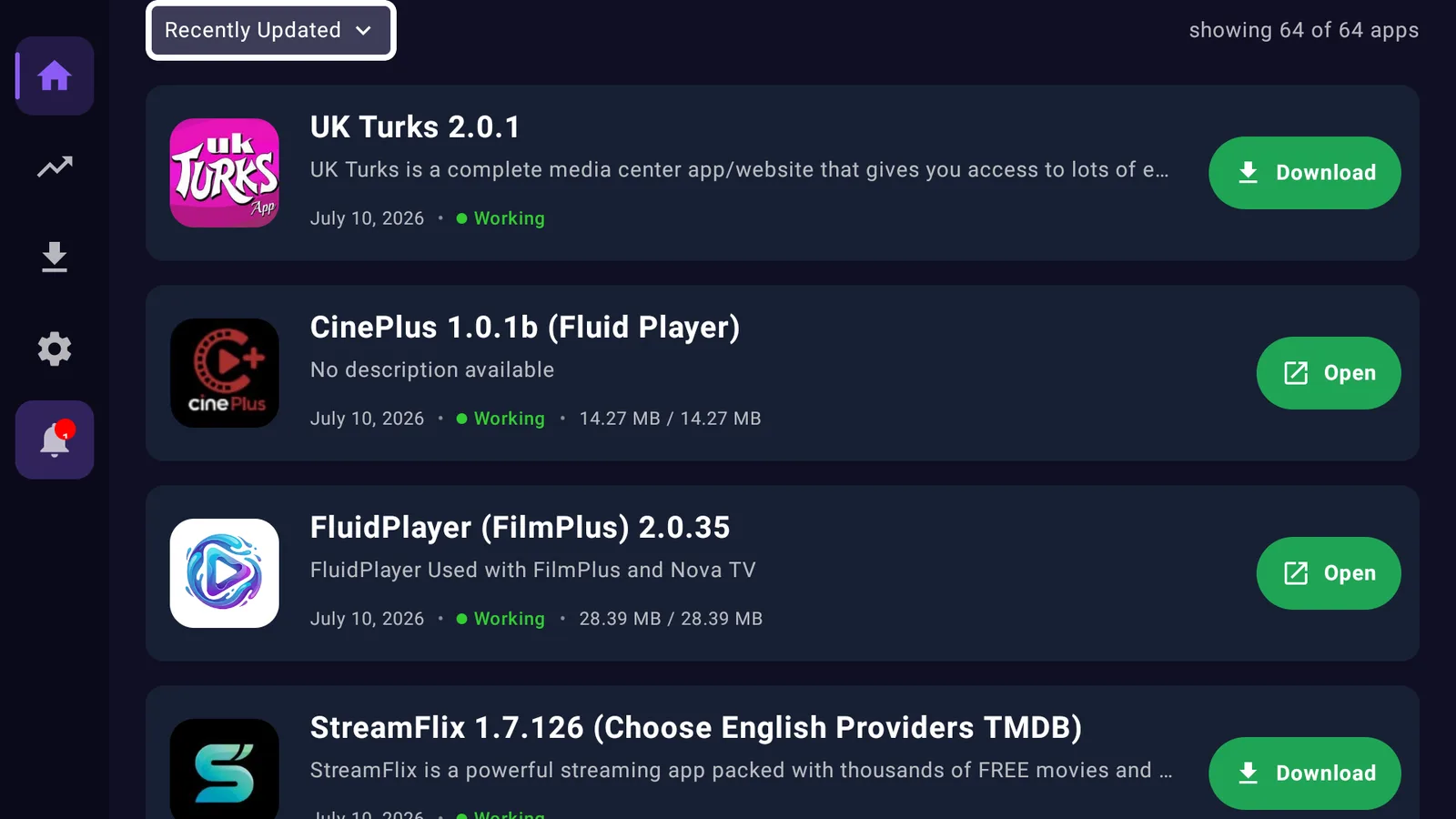
I just updated the LinkDrop Store so CinePlus and Fluid Player are both in there, ready to install with no codes and no long URLs to type.
- Open the LinkDrop app on your Fire Stick. If you do not have it yet, grab it free at linkdrop.store.
- Find CinePlus and select Install.
- Find Fluid Player and install that too. CinePlus uses it to play, so you want both.
- Let them finish, then open CinePlus.
That is the whole setup. No developer options to dig through, no store codes to memorize.
New to LinkDrop, or your Fire Stick will not install apps yet? Run through my sideloading guide once and you are set for good.
How CinePlus works
Once it is open, CinePlus is simple:
- Browse the rows on the home screen, or hit Search and type a movie or show.
- Select a title to open its page.
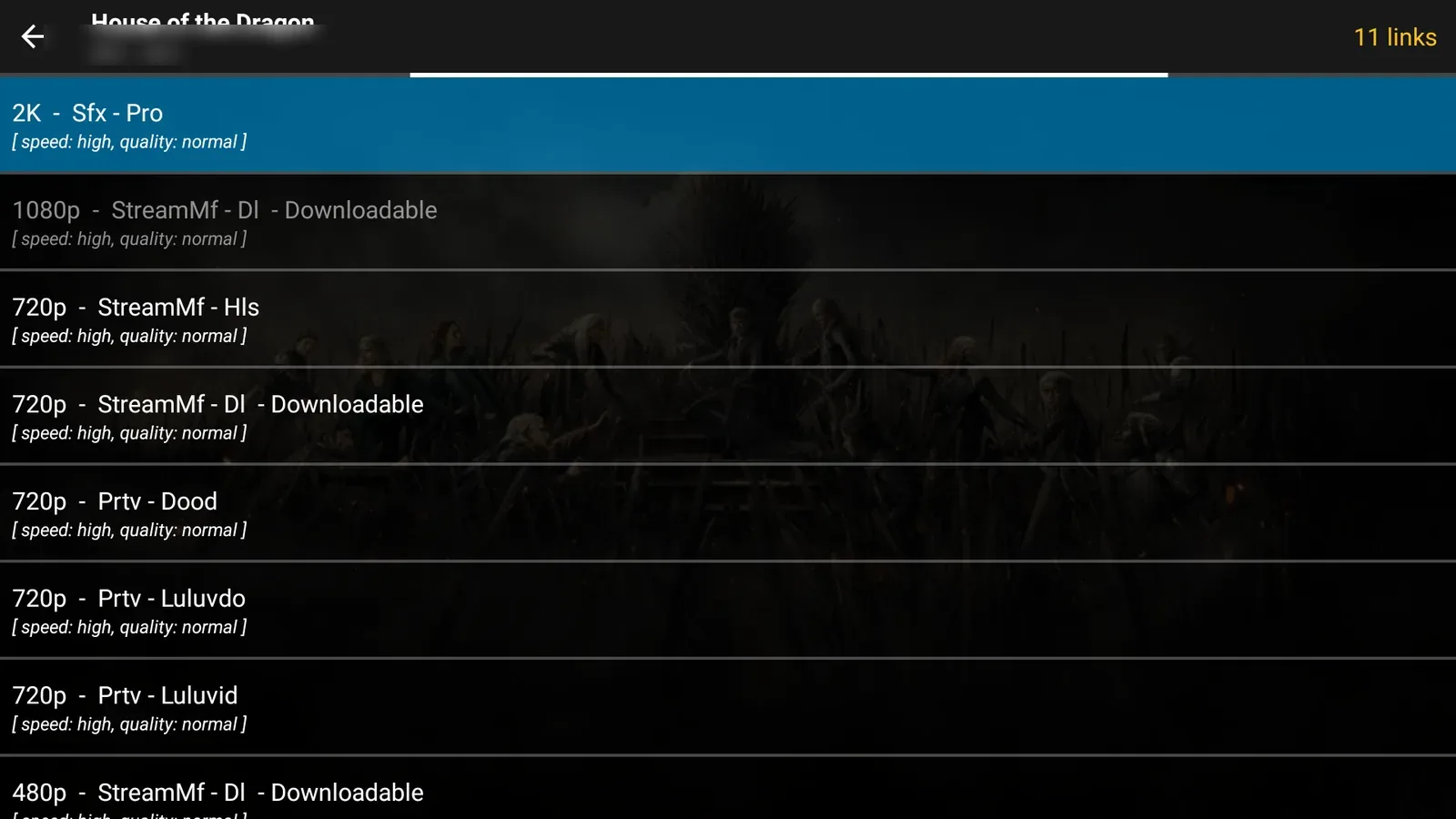
- CinePlus scans for streaming links and lists them, usually sorted by quality.
- Pick a link and it opens in Fluid Player.
- Give it a second or two to load and it plays. If one link is slow, back out and try the next one down.
That last habit is the one thing worth knowing: not every source is fast at every moment, so if a stream stalls, the fix is almost always the next link down, not a broken app.

Turn on your VPN before you stream
One habit that matters on any app like this: connect a VPN first. Without one, your internet provider can see everything you stream, and plenty of providers quietly throttle streaming traffic, which is what a lot of "buffering" actually is. I use IPVanish on my own Fire Stick. Open it, connect to a United States server, then open CinePlus. Done.
If CinePlus will not open or a link will not play
Run these in order, they clear up almost everything:
- Make sure both CinePlus and Fluid Player are installed. CinePlus needs Fluid Player to play.
- Reconnect your VPN and try again.
- If a title will not play, back out and pick the next streaming link down the list.
- Restart the Fire Stick if it has been running a while.
- Reinstall the latest CinePlus from the LinkDrop Store.
If an app is installed but simply will not open from the home screen, that is a separate Amazon block with its own fix. I covered it here: Fire Stick app won't open.
Stay private on your Fire Stick with IPVanish
It's the VPN I run on my own Fire Stick. It hides what you stream and sideload from your internet provider, and unblocks a lot more.
Frequently asked questions
Is BeeTV ever coming back?+
No. When an app like BeeTV goes down for good, that is the end of it. CinePlus is the one to use going forward.
Is CinePlus free?+
Yes. Install it from the LinkDrop Store and it is ready to go, same as BeeTV was.
What is Fluid Player and do I need it?+
Fluid Player is the video player CinePlus hands your streams to. Install it alongside CinePlus so playback runs smoothly. Both are in the LinkDrop Store.
A stream keeps buffering, what do I do?+
Connect your VPN first, then try the next streaming link down the list. Most buffering is either a slow source or your provider throttling streaming, and one of those two fixes it.
Do I need a code for the LinkDrop Store?+
No codes. Open LinkDrop, find CinePlus and Fluid Player, install, done. That is the whole point of keeping them in there.
Comments0
Join the conversation. Be kind, and no piracy talk.