
How to Install and Use Browsy on ONN TV (Plus the Best Browsy Codes)
Browsy is our free app installer on the Google Play Store, so it lands on an ONN box in seconds. Here is how to install it, the codes that come ready to go, how to build your own codes at Browsy.app, and the two safety scans that check every app before it installs.
Every sideloading tutorial you have ever followed asked you to do the same nervous thing. Type a long web address into your TV with a remote, download a file from somewhere, and install it while quietly hoping it is clean. Nobody checks it. Nothing scans it. You cross your fingers and press install.
Browsy is our answer to that. It is a free app on the Google Play Store, it lands on your ONN box in about thirty seconds, and it does two things nothing else on your TV does. It turns long web addresses into short numbers that you choose yourself, and it scans every app before it reaches your device. Twice, if you want it to.
Here is how to get it running on your ONN TV, the codes that come ready to go, and how to make the codes your own.
What Browsy actually is
Browsy is a free app installer. Instead of typing out a web address one painful character at a time, you type a number, press Go, and Browsy fetches whatever that number points to, checks it, and installs it.
It runs on Android phones, Android tablets, and Android TV, which is exactly what your ONN box is. So there is no sideloading gymnastics just to get the tool itself. It is right there in the Play Store like any normal app.
A quick note on Fire Stick: Browsy is not on Fire Stick yet. It is coming. For now it lives anywhere the Google Play Store lives, which covers ONN, Android TV boxes, phones, and tablets.
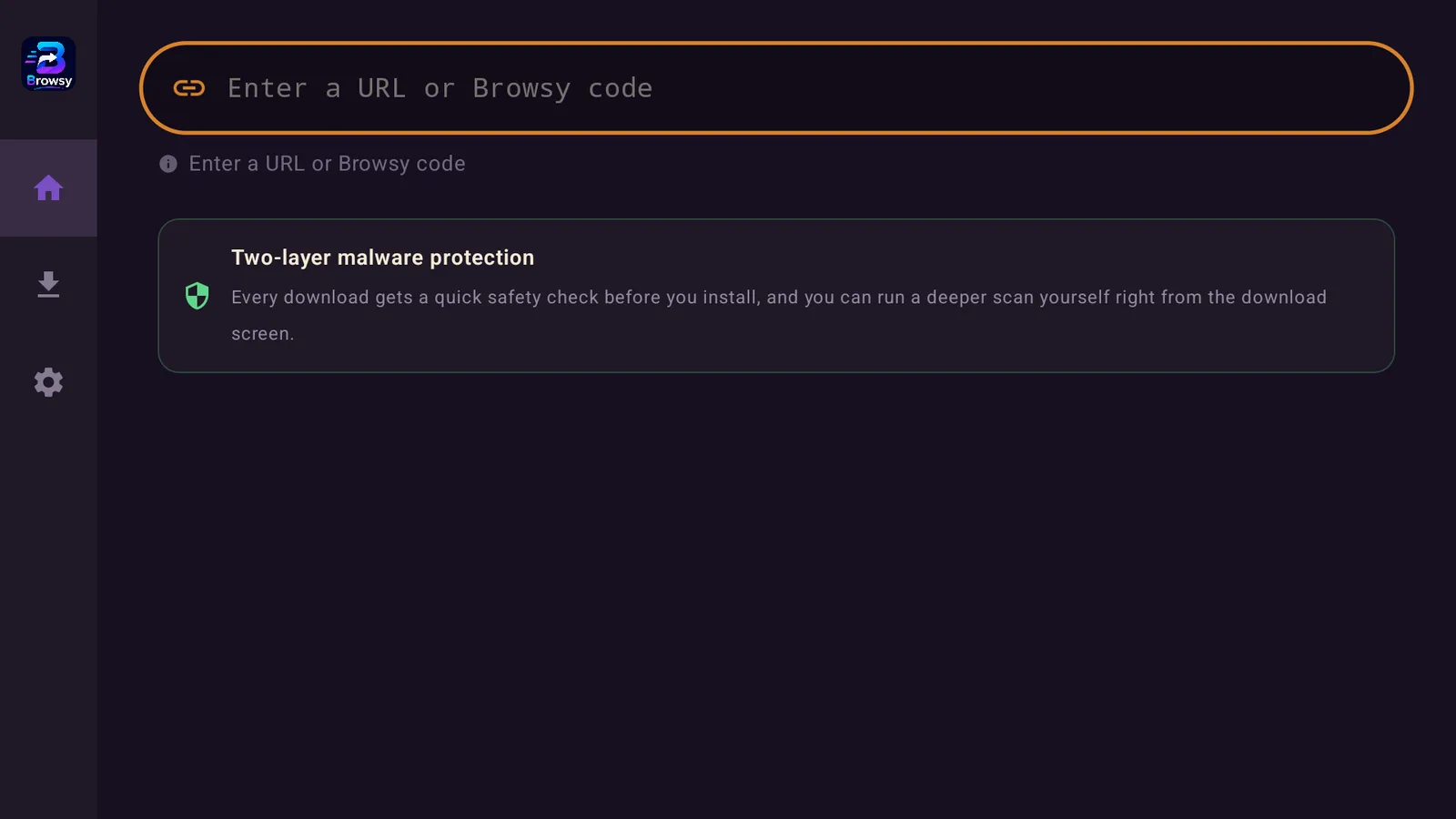
Install Browsy on your ONN TV
Because ONN runs Google TV, this is the easy part.
- From your ONN home screen, open the Google Play Store.
- Search for Browsy.
- Select Install.
- Open it.
That is the whole install. No unknown sources, no long links, no file manager. If you are still weighing up an ONN box against a Fire Stick, we compared them here: ONN 4K vs Fire Stick.
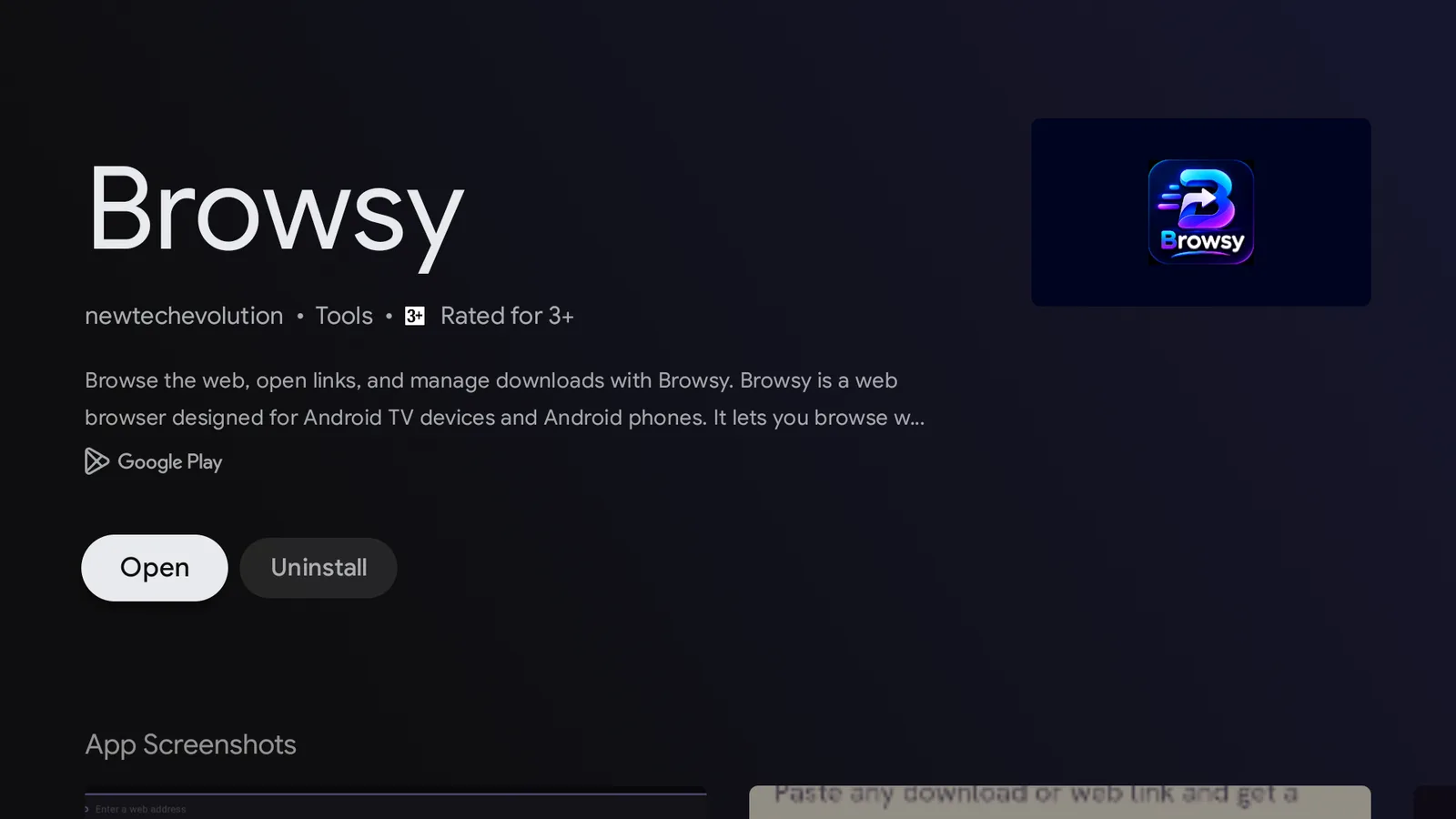
The codes that come ready to go
Open Browsy, type the number, press Enter. Browsy loads exactly what that code points to.
Code 1: TV Wizard. Our setup wizard. It gets a device ready and puts the core app stores in place for you, so a brand new box goes from empty to loaded without you doing the legwork.
Code 2: LinkDrop Store. Our free, always updated app library. Browse a handpicked shelf of the best streaming, live TV, and utility apps and install any of them in a click. This is the one you will use most. Here is how LinkDrop works.
Code 3: Browsy App. Browsy itself. Use it to grab the latest version or to get Browsy onto another device quickly.
Code 4: Unlinked. Another well known store, one number away instead of a hunt.
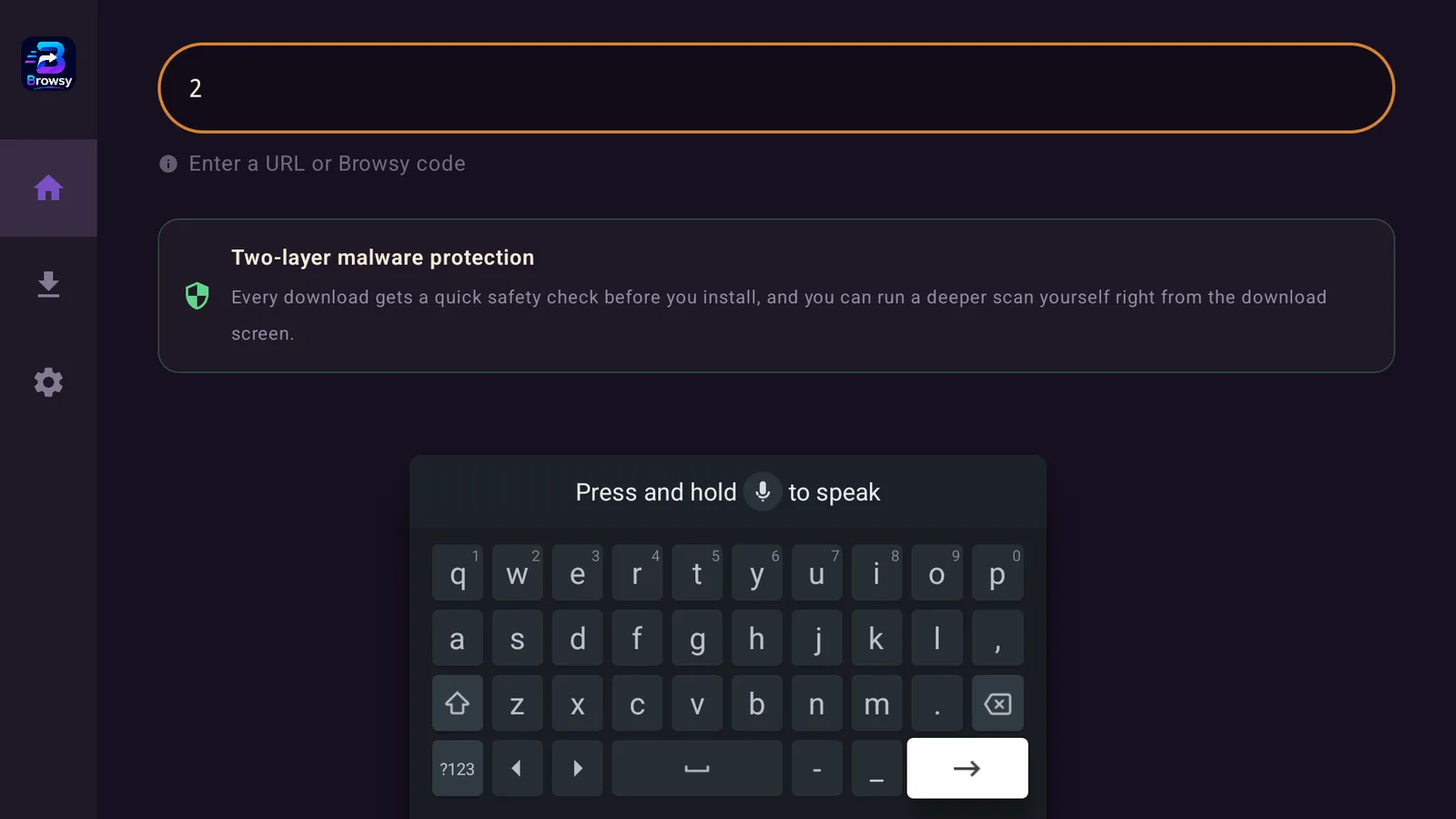
The part Downloader cannot do: make the codes yours
This is where Browsy stops being "Downloader but nicer" and becomes something else entirely.
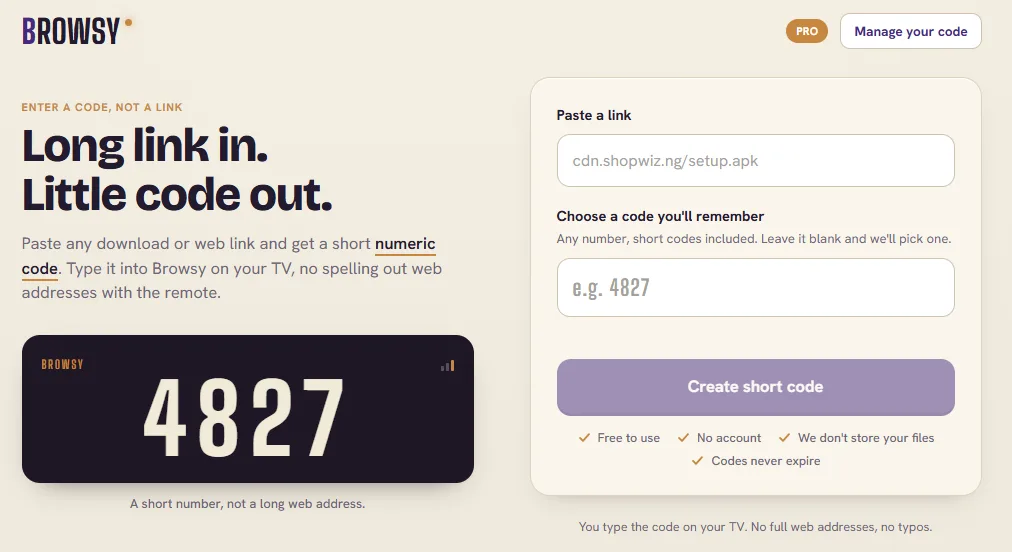
Go to Browsy.app and you can:
- Create your own codes. Pick the number you want and point it at whatever you want. Your setup, your shortcuts.
- Change the link behind a code, any time. If a link ever moves or dies, you update it once at Browsy.app using the unique token you get when you create a code and the code carries on working. You do not have to relearn anything or chase a new address.
Downloader gives you a fixed code that points wherever somebody else decided, and if that link goes stale, so does the code. With Browsy, the code is yours and it stays alive because you can re-point it whenever you like.
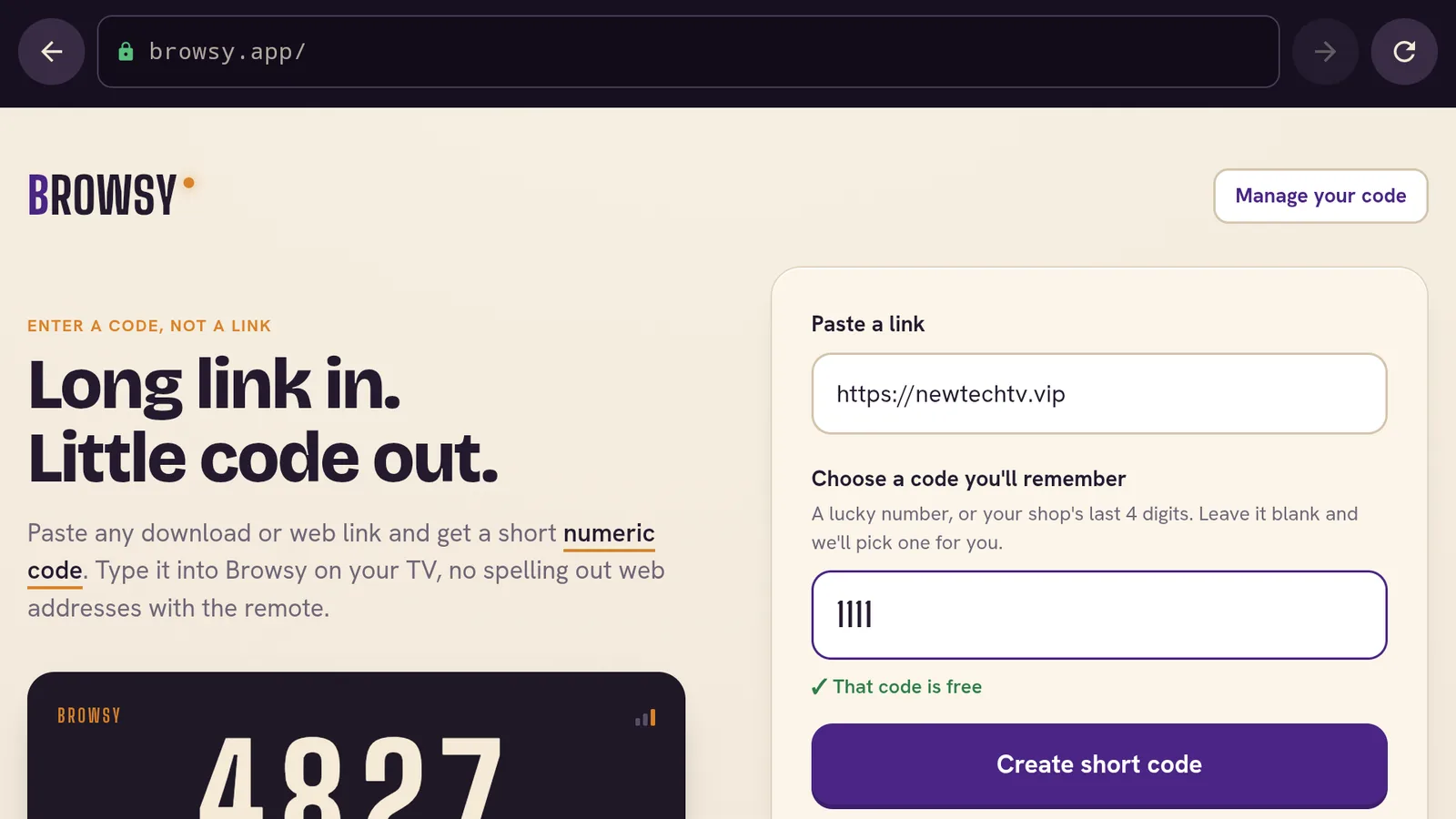
Two safety scans before anything installs
This is the feature we are proudest of, and it is the one no other installer on your TV gives you.
- The automatic scan. Every app Browsy pulls in gets scanned on the way in. You do not have to remember to do anything.
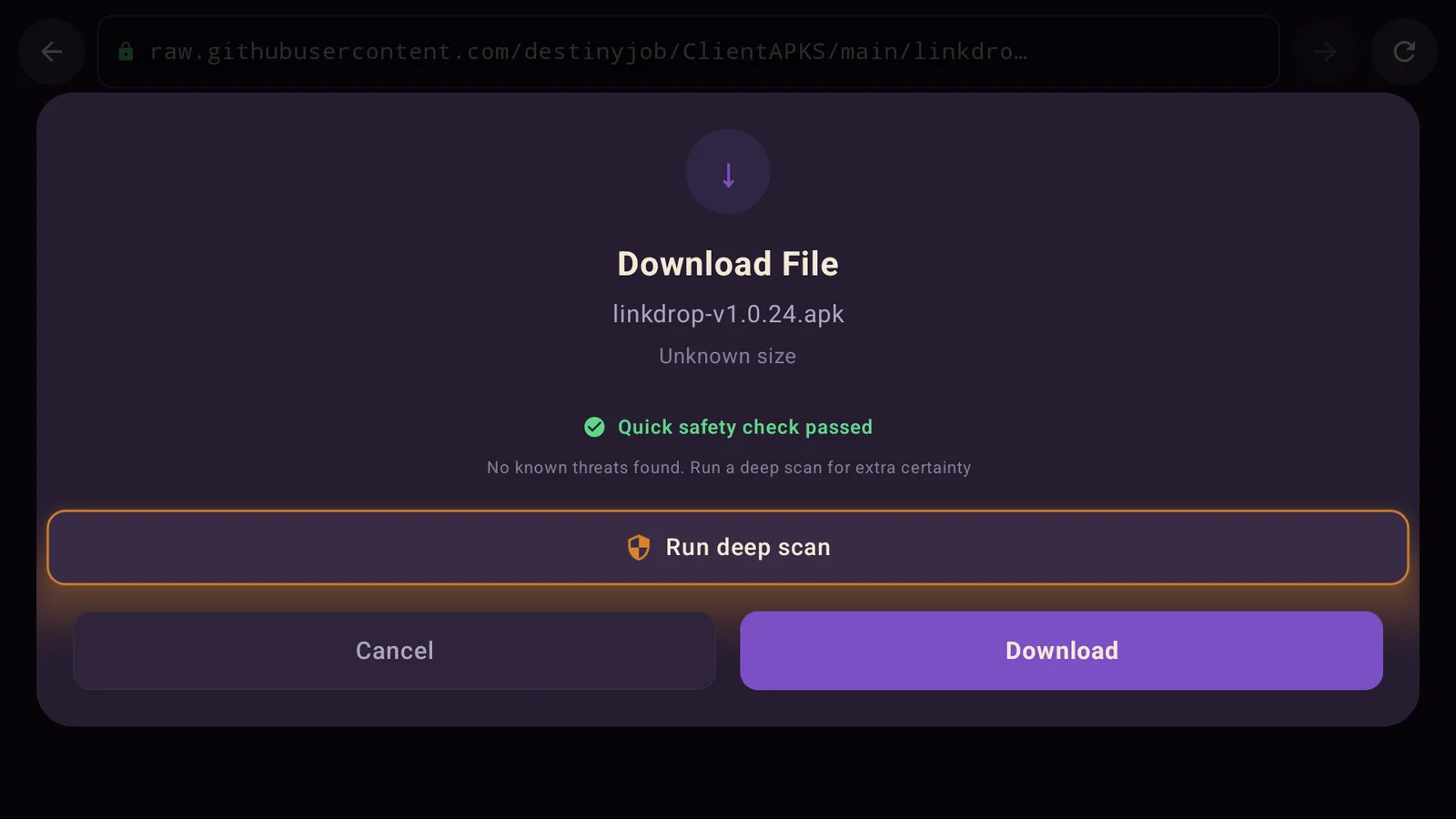
- The Deep scan. Before you install, you can tap Deep and Browsy runs a heavier check on the file itself.
Downloader does neither of these. It downloads what you point it at and hands it straight to the installer, and whatever is inside that file is your problem.
Make the Deep scan a habit on anything you have not installed before. It takes seconds and it is the difference between hoping an app is clean and knowing.
Let your box install the apps Browsy brings
Browsy comes from the Play Store, so it needs no special permission itself. The apps it fetches come from outside the store, so your ONN box will ask for the go ahead once.
- Open Settings.
- Go to Apps, then Security and restrictions.
- Select Unknown sources and turn the switch on for Browsy.
You do this once and never again. If you want the full background on sideloading, our plain English guide covers it: how to sideload apps.
One habit before you start streaming
Anything you install to stream, run it behind a VPN. Without one your internet provider can see every title you open, and plenty of providers quietly slow streaming traffic down, which is what a lot of "buffering" really is. We use IPVanish on our own boxes. Connect to a United States server first, then stream.
If something will not install
Work through these in order:
- Check that Unknown sources is switched on for Browsy.
- Make sure the box has a solid connection, then reopen Browsy.
- If a code will not load, close Browsy fully, reopen it, and try again.
- If a scan flags an app, do not force it through. That warning is the whole point.
- Restart the ONN box if it has been running a long time.
If an app installs but then refuses to open, that is a separate device block with its own fix: when an installed app will not open.
Stay private on your Fire Stick with IPVanish
It's the VPN I run on my own Fire Stick. It hides what you stream and sideload from your internet provider, and unblocks a lot more.
Frequently asked questions
Does Browsy work on ONN TV?+
Yes. ONN runs Google TV, so Browsy installs straight from the Google Play Store like any other app.
Does Browsy work on Fire Stick?+
Not yet. Fire Stick support is coming. Right now Browsy runs anywhere the Google Play Store does, which includes ONN, Android TV boxes, Android phones, and tablets.
Is Browsy free?+
Yes. Browsy is free, and so are TV Wizard and the LinkDrop Store that its codes point to.
Can I make my own Browsy codes?+
Yes, and it is the best thing about it. Go to Browsy.app, create the code number you want, and attach any link to it. You can change that link later and the code keeps working.
Is it safe to install apps through Browsy?+
Browsy scans every app automatically as it comes in, and you can tap Deep for a heavier scan before you install. That is two checks more than a normal installer gives you. Use the Deep scan on anything unfamiliar.
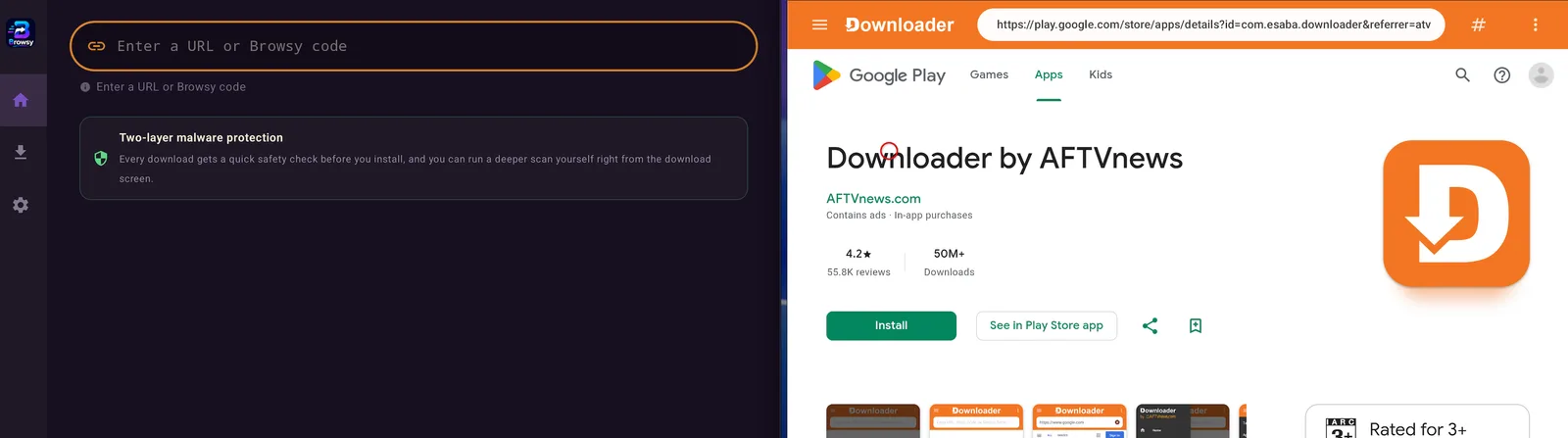
Do I still need Downloader?+
On an ONN box, most people will not. We put the two side by side here: Browsy vs Downloader.
Comments0
Join the conversation. Be kind, and no piracy talk.